Quickstart: State Management
In this quickstart, you'll run a stateful order application on Catalyst Cloud. You will learn how to:
- Provision a Catalyst project with a managed KV store using the Diagrid CLI.
- Save and retrieve state items using the Dapr State API.
- Inspect stored data in the Catalyst web console.
1. Prerequisites
Before you proceed, ensure you have the following prerequisites installed.
- Python
- .NET
- JavaScript
- Java
2. Log in to Catalyst
Authenticate to Diagrid Catalyst using the following command:
diagrid login
This command opens a new browser window where where you'll be shown a confirmation code that should match the code in your terminal. Confirm the code, and if you're not logged into Catalyst, you'll be redirected to login.
Confirm your user details are correct using the following command:
diagrid whoami
The expected output contains the name of the organization, your user name, and the Catalyst API endpoint.
3. Clone Quickstart Code
Clone the quickstart code from GitHub:
git clone https://github.com/diagridio/catalyst-quickstarts
Navigate to the quickstart directory:
- Python
- .NET
- JavaScript
- Java
- macOS/Linux
- Windows
cd catalyst-quickstarts/state/python
cd catalyst-quickstarts\state\python
- macOS/Linux
- Windows
cd catalyst-quickstarts/state/csharp
cd catalyst-quickstarts\state\csharp
- macOS/Linux
- Windows
cd catalyst-quickstarts/state/javascript
cd catalyst-quickstarts\state\javascript
- macOS/Linux
- Windows
cd catalyst-quickstarts/state/java
cd catalyst-quickstarts\state\java
4. Install Dependencies
Install the dependencies for the state management application.
- Python
- .NET
- JavaScript
- Java
Create and activate a Python virtual environment:
- macOS/Linux
- Windows
uv venv
source .venv/bin/activate
uv venv
.venv\Scripts\activate
## or use .venv\Scripts\Activate.ps1
Install dependencies:
uv sync
Install .NET dependencies:
dotnet restore
Install Node dependencies:
npm install
Install Maven dependencies:
mvn clean install
5. Run the application with Catalyst Cloud
The diagrid dev run command creates your Catalyst project, provisions resources (App IDs, Diagrid KV Store service), configures environment variables, and launches your application connected to Catalyst Cloud.
- Python
- .NET
- JavaScript
- Java
diagrid dev run -f state-quickstart.yaml --project state-quickstart --approve
diagrid dev run -f state-quickstart.yaml --project state-quickstart --approve
diagrid dev run -f state-quickstart.yaml --project state-quickstart --approve
diagrid dev run --project state-quickstart --app-id order-app --approve -- mvn spring-boot:run
Wait a few seconds until you see application logs in the terminal to ensure the application is up and running and connected to Catalyst.
6. Call the State API
With the quickstart running, test the State API by storing, retrieving, and deleting state items.
6.1 Store state
Open a new terminal and execute the following command to save a state item to the Diagrid KV store:
- macOS/Linux
- Windows
curl -i -X POST http://localhost:5001/order -H "Content-Type: application/json" -d '{"orderId":1}'
Invoke-RestMethod -Method Post -Uri "http://localhost:5001/order" -ContentType "application/json" -Body '{"orderId":1}'
The expected response is:
HTTP/1.1 200 OK
The application logs in the diagrid dev run terminal should show an order was saved.
6.2 Retrieve state
Confirm the state item was saved successfully by retrieving it:
- macOS/Linux
- Windows
curl -i -X GET http://localhost:5001/order/1
Invoke-RestMethod -Method Get -Uri "http://localhost:5001/order/1"
The expected response body is:
{"orderId":1}
6.3 View in the Catalyst web console
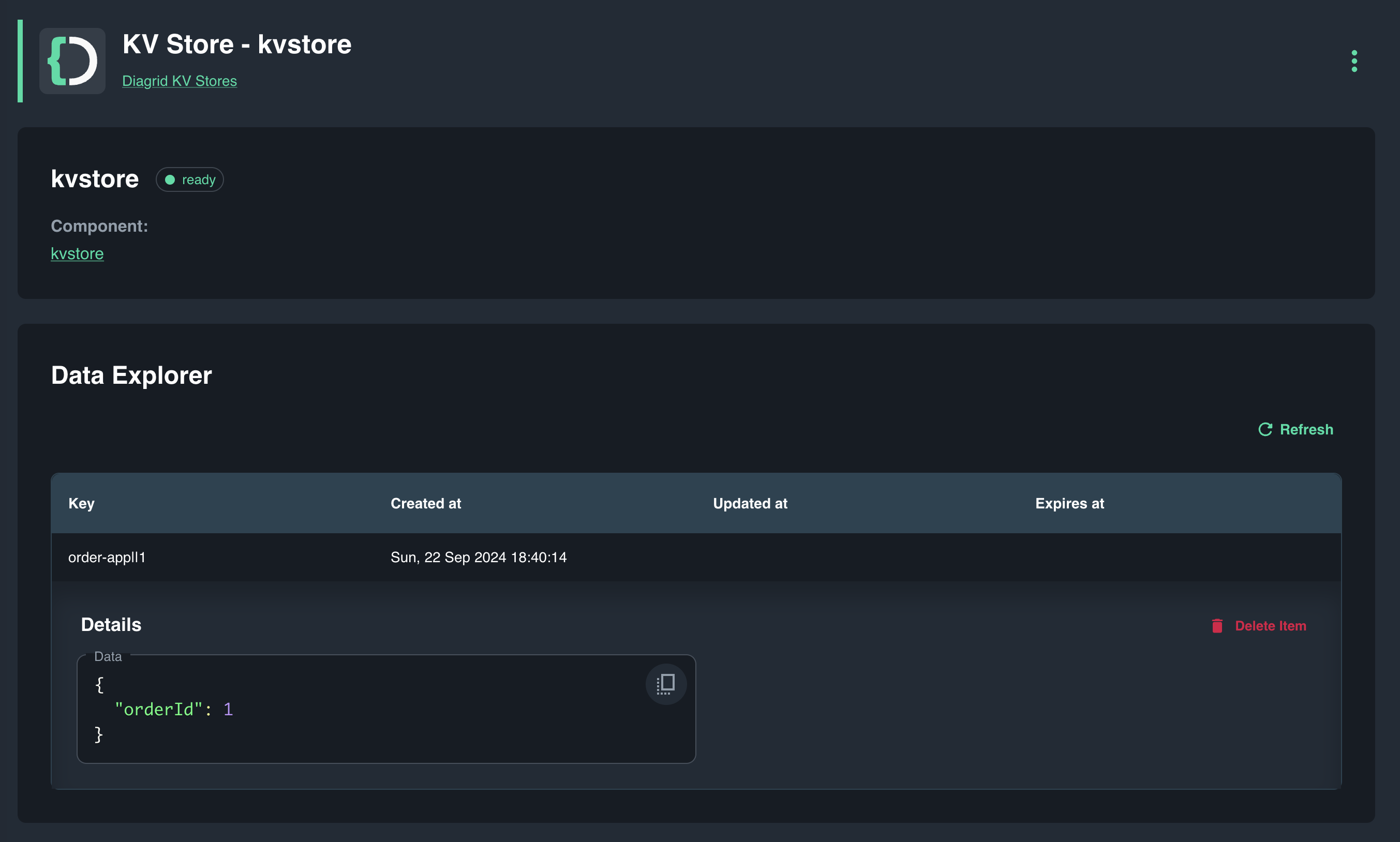
Open the Catalyst Cloud web console and navigate to the KV Store data explorer to (Resources > Managed KV store) view stored state items. The data explorer displays the key-value pairs saved by your application.
7. Clean Up
Press CTRL+C in the terminal that runs diagrid dev run to stop the application and disconnect from Catalyst Cloud.
To delete the entire project and all provisioned resources:
diagrid project delete state-quickstart
Summary
In this quickstart you:
- Logged in to Catalyst and provisioned a managed state store project with a single CLI command (
diagrid dev run). - Saved and retrieved state items using the Dapr State API.
- Inspected stored data using the Catalyst KV Store data explorer.
Catalyst handled state persistence and key-value storage automatically — no infrastructure to manage.
Next steps
- Explore the Dapr API SDK guides to integrate state management into your own applications.
- Try the Pub/Sub quickstart to add event-driven messaging to your application.