Quickstart: build a workflow with your AI coding agent
In this quickstart, your AI coding agent runs a durable workflow on Catalyst, crashes it partway through, and shows you the run resume where it stopped. You will learn how to:
- Set up Claude Code, Codex or the Copilot CLI with the Catalyst AI plugin.
- Have your agent run a sample workflow in your
defaultproject, or in the project you pick. - See a crashed run wait instead of fail, then finish after a restart.
- Ask your agent to build, check and debug workflows in your own code.
Not using an AI coding agent? Follow the CLI version of this quickstart.
1. Prerequisites
- Claude Code, OpenAI Codex, or the GitHub Copilot CLI. Claude Code is the agent these steps are tested with.
- Git.
- The runtime for your language:
- Python
- .NET
- JavaScript
- Java
You don't need the Diagrid CLI. The sample runs in the default project when it exists; otherwise your agent lists your projects and lets you pick one, or creates a new one for you.
2. Install the Catalyst AI plugin
Run the command for your agent. It installs the Catalyst AI plugin: the Catalyst skills and the Catalyst MCP server:
- Claude Code
- Codex
- Copilot CLI
- macOS/Linux
- Windows
claude plugin marketplace add diagridio/catalyst-ai && claude plugin install catalyst-ai@diagrid
claude plugin marketplace add diagridio/catalyst-ai
claude plugin install catalyst-ai@diagrid
The plugin installs the skills, registers the Catalyst MCP server, and adds the /catalyst-ai:try-workflow and /catalyst-ai:try-agent commands.
- macOS/Linux
- Windows
npx skills add diagridio/catalyst-ai --agent codex --skill '*' --yes && codex mcp add catalyst --url https://mcp.cloud.r1.diagrid.io/mcp --oauth-client-id codex
npx skills add diagridio/catalyst-ai --agent codex --skill '*' --yes
codex mcp add catalyst --url https://mcp.cloud.r1.diagrid.io/mcp --oauth-client-id codex
This installs the skills into .agents/skills/ in the current project, and adds the Catalyst MCP server.
- macOS/Linux
- Windows
npx skills add diagridio/catalyst-ai --agent github-copilot --skill '*' --yes && copilot mcp add --transport http catalyst https://mcp.cloud.r1.diagrid.io/mcp
npx skills add diagridio/catalyst-ai --agent github-copilot --skill '*' --yes
copilot mcp add --transport http catalyst https://mcp.cloud.r1.diagrid.io/mcp
This installs the skills into .agents/skills/ in the current project, and adds the Catalyst MCP server. Then open ~/.copilot/mcp-config.json and add "oauthClientId": "copilot-cli" to the catalyst entry, so Copilot signs in with its registered client ID:
{
  "mcpServers": {
    "catalyst": {
      "type": "http",
      "url": "https://mcp.cloud.r1.diagrid.io/mcp",
      "oauthClientId": "copilot-cli",
      "tools": ["*"]
    }
  }
}
3. Sign in
Authenticate once:
- Claude Code
- Codex
- Copilot CLI
Run /mcp, choose plugin:catalyst-ai:catalyst, and choose Authenticate.
codex mcp login catalyst
Run /mcp, choose catalyst, and choose Authenticate.
Your browser opens. Sign in, or create a free account, then approve your agent's access. From then on, your agent acts as you.
If you just created your account, verify your email, open catalyst.diagrid.io once to finish setting it up, and then authenticate again.
To check it worked, ask your agent: "Who am I in Catalyst?"
4. Run the demo
Start your agent in an empty folder. For Codex and the Copilot CLI, start it in the folder where you installed the skills.
- Python
- .NET
- JavaScript
- Java
Paste this prompt:
I'm new to Diagrid Catalyst. Show me a durable workflow that survives a crash, using the Catalyst MCP tools for everything in Catalyst, and your shell for git and running the app.
`<project>` in this prompt is the name, not the numeric ID, of the project settled in step 2: `default` unless step 2 settles another.
Whenever a run starts, whenever you wait for me, and at the end, give me that run's console link as a markdown link, never in backticks or a code block, so I can click it: [Run <instance-id> in Catalyst](https://catalyst.diagrid.io/workflows/<app-id>/<instance-id>?project=<project>). Put the plain URL on the line after it as well, also outside backticks, in case my terminal does not render links.
1. Call `catalyst_whoami` and tell me which org I'm signed in to. If that fails, help me sign in.
2. Check with `catalyst_list_projects` that project `default` exists, and use it if it does. If it does not, list the other projects I have and ask me to pick one or to have you create a new project for me. Only create a project if I choose that. Your Catalyst skills say not to create projects, but here I am asking you to: ask me for a name, check with `catalyst_get_usage` that I have room for another project, create it with `catalyst_apply` and a `Project` manifest (`catalyst_get_resource_schema` shows its shape), and use it from then on. Never tell me to create it myself in the console. If I have no projects, offer to create one the same way.
3. Clone https://github.com/diagridio/catalyst-quickstarts, take the durable workflow sample in my language (Python if unsure), and make sure App ID `durable-workflow` exists in project `<project>`.
4. Get its connection with `catalyst_get_connection`, write the values to a `.env` in the sample folder (gitignored), and start the sample in the background with its environment loaded from it.
5. Run one workflow to completion. Then start one through the sample's crash endpoint, show me with `catalyst_get_workflow_run` that it's RUNNING and waiting, not failed, and wait until I type continue.
6. Restart the app. When the run completes, show me from its history that finished steps ran once and only the step the crash cut off ran again.
7. Explain in at most three sentences why it survived, then offer one next step and wait for my pick.
Paste this prompt. Its first line picks the .NET sample:
Use the .NET (C#) sample.
I'm new to Diagrid Catalyst. Show me a durable workflow that survives a crash, using the Catalyst MCP tools for everything in Catalyst, and your shell for git and running the app.
`<project>` in this prompt is the name, not the numeric ID, of the project settled in step 2: `default` unless step 2 settles another.
Whenever a run starts, whenever you wait for me, and at the end, give me that run's console link as a markdown link, never in backticks or a code block, so I can click it: [Run <instance-id> in Catalyst](https://catalyst.diagrid.io/workflows/<app-id>/<instance-id>?project=<project>). Put the plain URL on the line after it as well, also outside backticks, in case my terminal does not render links.
1. Call `catalyst_whoami` and tell me which org I'm signed in to. If that fails, help me sign in.
2. Check with `catalyst_list_projects` that project `default` exists, and use it if it does. If it does not, list the other projects I have and ask me to pick one or to have you create a new project for me. Only create a project if I choose that. Your Catalyst skills say not to create projects, but here I am asking you to: ask me for a name, check with `catalyst_get_usage` that I have room for another project, create it with `catalyst_apply` and a `Project` manifest (`catalyst_get_resource_schema` shows its shape), and use it from then on. Never tell me to create it myself in the console. If I have no projects, offer to create one the same way.
3. Clone https://github.com/diagridio/catalyst-quickstarts, take the durable workflow sample in my language (Python if unsure), and make sure App ID `durable-workflow` exists in project `<project>`.
4. Get its connection with `catalyst_get_connection`, write the values to a `.env` in the sample folder (gitignored), and start the sample in the background with its environment loaded from it.
5. Run one workflow to completion. Then start one through the sample's crash endpoint, show me with `catalyst_get_workflow_run` that it's RUNNING and waiting, not failed, and wait until I type continue.
6. Restart the app. When the run completes, show me from its history that finished steps ran once and only the step the crash cut off ran again.
7. Explain in at most three sentences why it survived, then offer one next step and wait for my pick.
Paste this prompt. Its first line picks the JavaScript sample:
Use the JavaScript sample.
I'm new to Diagrid Catalyst. Show me a durable workflow that survives a crash, using the Catalyst MCP tools for everything in Catalyst, and your shell for git and running the app.
`<project>` in this prompt is the name, not the numeric ID, of the project settled in step 2: `default` unless step 2 settles another.
Whenever a run starts, whenever you wait for me, and at the end, give me that run's console link as a markdown link, never in backticks or a code block, so I can click it: [Run <instance-id> in Catalyst](https://catalyst.diagrid.io/workflows/<app-id>/<instance-id>?project=<project>). Put the plain URL on the line after it as well, also outside backticks, in case my terminal does not render links.
1. Call `catalyst_whoami` and tell me which org I'm signed in to. If that fails, help me sign in.
2. Check with `catalyst_list_projects` that project `default` exists, and use it if it does. If it does not, list the other projects I have and ask me to pick one or to have you create a new project for me. Only create a project if I choose that. Your Catalyst skills say not to create projects, but here I am asking you to: ask me for a name, check with `catalyst_get_usage` that I have room for another project, create it with `catalyst_apply` and a `Project` manifest (`catalyst_get_resource_schema` shows its shape), and use it from then on. Never tell me to create it myself in the console. If I have no projects, offer to create one the same way.
3. Clone https://github.com/diagridio/catalyst-quickstarts, take the durable workflow sample in my language (Python if unsure), and make sure App ID `durable-workflow` exists in project `<project>`.
4. Get its connection with `catalyst_get_connection`, write the values to a `.env` in the sample folder (gitignored), and start the sample in the background with its environment loaded from it.
5. Run one workflow to completion. Then start one through the sample's crash endpoint, show me with `catalyst_get_workflow_run` that it's RUNNING and waiting, not failed, and wait until I type continue.
6. Restart the app. When the run completes, show me from its history that finished steps ran once and only the step the crash cut off ran again.
7. Explain in at most three sentences why it survived, then offer one next step and wait for my pick.
Paste this prompt. Its first line picks the Java sample:
Use the Java sample.
I'm new to Diagrid Catalyst. Show me a durable workflow that survives a crash, using the Catalyst MCP tools for everything in Catalyst, and your shell for git and running the app.
`<project>` in this prompt is the name, not the numeric ID, of the project settled in step 2: `default` unless step 2 settles another.
Whenever a run starts, whenever you wait for me, and at the end, give me that run's console link as a markdown link, never in backticks or a code block, so I can click it: [Run <instance-id> in Catalyst](https://catalyst.diagrid.io/workflows/<app-id>/<instance-id>?project=<project>). Put the plain URL on the line after it as well, also outside backticks, in case my terminal does not render links.
1. Call `catalyst_whoami` and tell me which org I'm signed in to. If that fails, help me sign in.
2. Check with `catalyst_list_projects` that project `default` exists, and use it if it does. If it does not, list the other projects I have and ask me to pick one or to have you create a new project for me. Only create a project if I choose that. Your Catalyst skills say not to create projects, but here I am asking you to: ask me for a name, check with `catalyst_get_usage` that I have room for another project, create it with `catalyst_apply` and a `Project` manifest (`catalyst_get_resource_schema` shows its shape), and use it from then on. Never tell me to create it myself in the console. If I have no projects, offer to create one the same way.
3. Clone https://github.com/diagridio/catalyst-quickstarts, take the durable workflow sample in my language (Python if unsure), and make sure App ID `durable-workflow` exists in project `<project>`.
4. Get its connection with `catalyst_get_connection`, write the values to a `.env` in the sample folder (gitignored), and start the sample in the background with its environment loaded from it.
5. Run one workflow to completion. Then start one through the sample's crash endpoint, show me with `catalyst_get_workflow_run` that it's RUNNING and waiting, not failed, and wait until I type continue.
6. Restart the app. When the run completes, show me from its history that finished steps ran once and only the step the crash cut off ran again.
7. Explain in at most three sentences why it survived, then offer one next step and wait for my pick.
5. What happens
Your agent works through the prompt step by step. The Catalyst skills fire on their own; you don't name them.
- It checks who you are.
catalyst-setupconfirms the connection withcatalyst_whoamiand tells you your organization. - It picks the project. It checks with
catalyst_list_projectsthatdefaultexists, and uses it. Ifdefaultis gone, it lists your other projects and asks which to use, or whether to create a new one for you. It only creates a project if you choose that, withcatalyst_apply, so you never have to create it in the console yourself. - It gets the sample. It clones
catalyst-quickstartsand takes the workflow sample in your language. - It creates the App ID.
catalyst-developchecks for App IDdurable-workflowand creates it withcatalyst_applyif it's missing. It may show you a dry run first. - It connects the app.
catalyst_get_connectionreturns the three connection values. Your agent writes them to a.envin the sample folder, makes sure.envis gitignored, and starts the app in the background. Your agent may ask you to approve this tool call. - It runs one workflow to completion, so you see the normal path.
- It crashes one. It starts a second run through the sample's crash endpoint. The app dies mid-run.
- It shows the run waiting.
catalyst_get_workflow_runshows the run asRUNNINGand waiting for a worker, not failed. Your agent stops and waits until you typecontinue. - It restarts the app. The run picks up where it stopped and completes.
- It shows the history. The steps that finished before the crash ran once. Only the step the crash cut off ran again.
- It explains why, in at most three sentences, and offers you one next step.
At every stage, your agent prints a link to the run in the Catalyst console.
6. View in the Catalyst web console
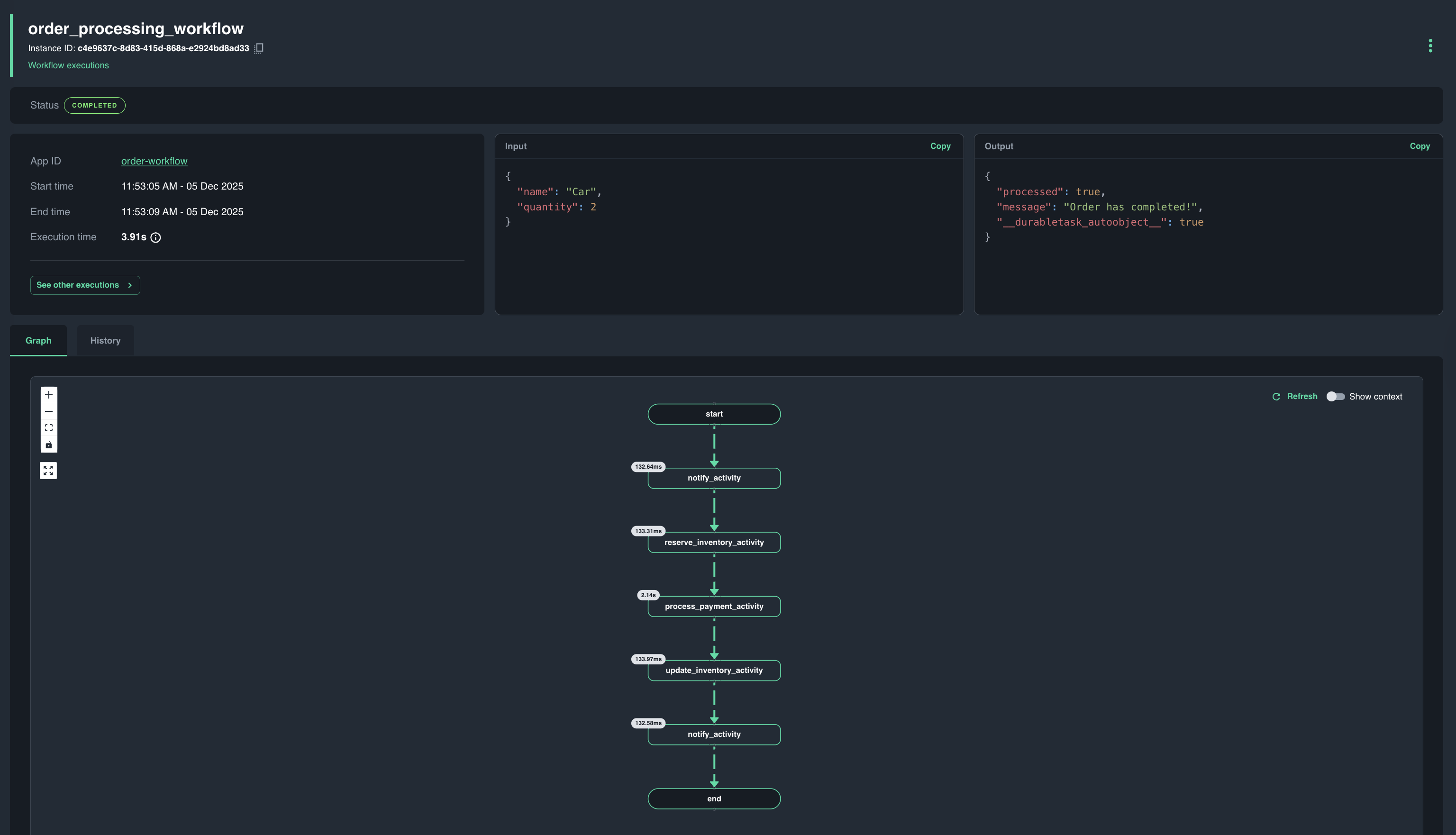
Open the link your agent printed. The run's page shows each step and its status, with the interrupted step run twice.
7. Take it further
Try one of these in your own project. Each one triggers a Catalyst skill:
| Ask your agent | Skill that fires |
|---|---|
| "Add a workflow to this repo that charges a card, books a room, and compensates if the booking fails." | catalyst-workflow-scaffold |
| "Turn this diagram into a durable workflow:" followed by a Mermaid diagram or a whiteboard photo | catalyst-workflow-from-diagram |
| "Check that my workflow code is safe to replay." | catalyst-workflow-determinism |
| "My last workflow run failed. Why?" | catalyst-debug |
8. Clean up
Ask your agent:
Stop the sample app, then delete the durable-workflow app from the project you used.
Deleting is marked destructive, so your agent asks you to confirm first. The default project stays; if you created a project for the sample, your agent asks before deleting that too.
Summary
- You set up your AI coding agent with the Catalyst AI plugin.
- Your agent ran a durable workflow in your
defaultproject (or the one you picked), crashed it, and showed you it resume. - Only the step the crash interrupted ran twice; the finished steps came from the run's history.
