Quickstart: Workflow
In this quickstart, you'll run an order processing workflow on Catalyst Cloud. You will learn how to:
- Provision a Catalyst project with a managed workflow engine using the Diagrid CLI.
- Run a stateful, multi-step order workflow that chains inventory checking, payment processing, and notification activities.
- Start, monitor, and inspect workflow executions using both the API and the Catalyst web console.
- Recover a workflow after the process dies mid-run, resuming the same instance under an ID you choose.
Using Claude Code, Codex or the Copilot CLI? Try the AI coding agent version of this quickstart.
1. Prerequisites
Before you proceed, ensure you have the following prerequisites installed.
- Python
- .NET
- JavaScript
- Java
- n8n
- Diagrid Catalyst account
- Diagrid CLI
- Node.js 22.13+ and npm (required by
@diagrid/n8n)
2. Log in to Catalyst
Authenticate to Diagrid Catalyst using the following command:
diagrid login
This command opens a new browser window where you'll be shown a confirmation code that should match the code in your terminal. Confirm the code, and if you're not logged into Catalyst, you'll be redirected to login.
Confirm your user details are correct using the following command:
diagrid whoami
The expected output contains the name of the organization, your user name, and the Catalyst API endpoint.
3. Clone Quickstart Code
Clone the quickstart code from GitHub:
git clone https://github.com/diagridio/catalyst-quickstarts
Navigate to the quickstart directory:
- Python
- .NET
- JavaScript
- Java
- n8n
- macOS/Linux
- Windows
cd catalyst-quickstarts/workflow/python
cd catalyst-quickstarts\workflow\python
- macOS/Linux
- Windows
cd catalyst-quickstarts/workflow/csharp
cd catalyst-quickstarts\workflow\csharp
- macOS/Linux
- Windows
cd catalyst-quickstarts/workflow/javascript
cd catalyst-quickstarts\workflow\javascript
- macOS/Linux
- Windows
cd catalyst-quickstarts/workflow/java
cd catalyst-quickstarts\workflow\java
n8n has no quickstart code to clone — skip the git clone above. Create an empty project directory instead:
- macOS/Linux
- Windows
mkdir n8n-workflow-quickstart && cd n8n-workflow-quickstart
mkdir n8n-workflow-quickstart; cd n8n-workflow-quickstart
4. Install Dependencies
Install the dependencies for the workflow application.
- Python
- .NET
- JavaScript
- Java
- n8n
Install Python dependencies:
uv sync --all-packages
Install .NET dependencies:
dotnet build
Install Node dependencies:
npm install
Install Maven dependencies:
mvn clean install
Install n8n itself and @diagrid/n8n, the package that attaches Catalyst's workflow engine to it:
npm init -y
npm install n8n @diagrid/n8n
npm pkg set scripts.start="n8n start"
npm nests n8n's own copies of n8n-core and n8n-workflow inside n8n's package instead of hoisting them, so @diagrid/n8n can't resolve them by default. Link them into place:
- macOS/Linux
- Windows
ln -s "$(pwd)/node_modules/n8n/node_modules/n8n-core" node_modules/n8n-core
ln -s "$(pwd)/node_modules/n8n/node_modules/n8n-workflow" node_modules/n8n-workflow
New-Item -ItemType Junction -Path "node_modules\n8n-core" -Target "node_modules\n8n\node_modules\n8n-core"
New-Item -ItemType Junction -Path "node_modules\n8n-workflow" -Target "node_modules\n8n\node_modules\n8n-workflow"
5. Run the application with Catalyst Cloud
The diagrid dev run command creates your Catalyst project, provisions resources (apps, workflow engine, managed state store), configures environment variables, and launches your application connected to Catalyst Cloud.
- Python
- .NET
- JavaScript
- Java
- n8n
Run the application:
uv run diagrid dev run -f workflow-quickstart.yaml --project workflow-quickstart --approve
Run the application:
diagrid dev run -f workflow-quickstart.yaml --project workflow-quickstart --approve
Run the application:
diagrid dev run -f workflow-quickstart.yaml --project workflow-quickstart --approve
Run the application:
diagrid dev run --project workflow-quickstart --id durable-workflow --approve -- mvn spring-boot:run
Save the following as n8n-workflow-quickstart.yaml. NODE_OPTIONS is what attaches @diagrid/n8n to n8n at boot, and DIAGRID_N8N_STATE_STORE points its idempotency ledger at the KV store diagrid dev run provisions for this project:
version: 1
common:
  appLogDestination: console
apps:
  - appID: n8n-workflow
    appPort: 0
    appDirPath: .
    command:
      - npm
      - run
      - start
    appProtocol: http
    env:
      NODE_OPTIONS: "--require @diagrid/n8n/register"
      DIAGRID_N8N_STATE_STORE: "kvstore"
Run it:
diagrid dev run -f n8n-workflow-quickstart.yaml --project workflow-quickstart --approve
Wait until the terminal prints n8n ready on ::, port 5678 to confirm n8n is up and connected to Catalyst. n8n also logs a couple of unrelated warnings on startup (a missing Confluence credential, no Python task runner) — both are harmless and unrelated to this quickstart.
If you already run n8n locally, add N8N_USER_FOLDER: "./.n8n-data" to the env block above so this quickstart's data doesn't collide with your existing instance.
Wait a few seconds until you see application logs in the terminal to ensure the application is up and running and connected to Catalyst (see the n8n tab above for the exact line n8n prints).
6. Start and inspect a workflow instance
- Python
- .NET
- JavaScript
- Java
- n8n
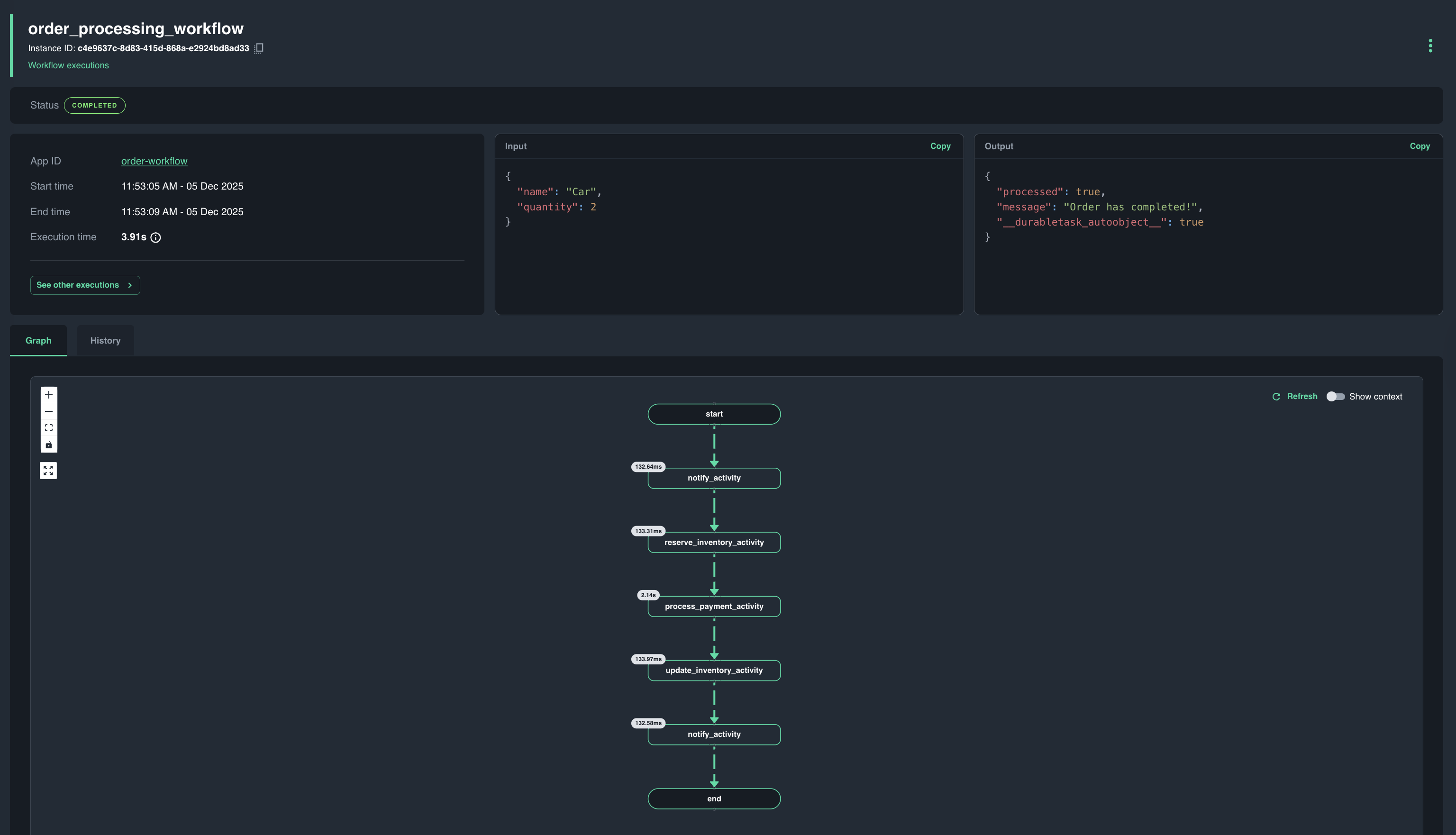
The Order Processing workflow chains notification, inventory, and payment activities. See the diagram for details.
The Order Processing workflow chains notification, inventory, and payment activities. See the diagram for details.
The Order Processing workflow chains notification, inventory, and payment activities. See the diagram for details.
The Order Processing workflow chains notification, inventory, and payment activities. See the diagram for details.
This quickstart's n8n workflow is deliberately the simplest shape that proves durability: Manual Trigger → Wait (90s) → NoOp. Wait is the node that matters — n8n treats a wait over 65 seconds as a genuine durable timer in Catalyst rather than an in-process one, so the 90 seconds you're about to trigger is state living in Catalyst, not in n8n's process.
6.1 Start workflow
- Python
- .NET
- JavaScript
- Java
- n8n
Open a new terminal and start a new workflow by making a POST request to the start endpoint:
- macOS/Linux
- Windows
curl -i -X POST http://localhost:5001/workflow/start -H "Content-Type: application/json" -d '{"name":"Car", "quantity":2}'
Invoke-RestMethod -Method Post -Uri "http://localhost:5001/workflow/start" -ContentType "application/json" -Body '{"name":"Car", "quantity":2}'
This returns a workflow instance ID. Copy the value from the response and save it as an environment variable for subsequent calls:
- macOS/Linux
- Windows
export INSTANCE_ID=<YOUR_INSTANCE_ID>
$env:INSTANCE_ID = "<YOUR_INSTANCE_ID>"
Open a new terminal and start a new workflow by making a POST request to the start endpoint:
- macOS/Linux
- Windows
curl -i -X POST http://localhost:5001/workflow/start -H "Content-Type: application/json" -d '{"name":"Car", "quantity":2}'
Invoke-RestMethod -Method Post -Uri "http://localhost:5001/workflow/start" -ContentType "application/json" -Body '{"name":"Car", "quantity":2}'
This returns a workflow instance ID. Copy the value from the response and save it as an environment variable for subsequent calls:
- macOS/Linux
- Windows
export INSTANCE_ID=<YOUR_INSTANCE_ID>
$env:INSTANCE_ID = "<YOUR_INSTANCE_ID>"
Open a new terminal and start a new workflow by making a POST request to the start endpoint:
- macOS/Linux
- Windows
curl -i -X POST http://localhost:5001/workflow/start -H "Content-Type: application/json" -d '{"name":"Car", "quantity":2}'
Invoke-RestMethod -Method Post -Uri "http://localhost:5001/workflow/start" -ContentType "application/json" -Body '{"name":"Car", "quantity":2}'
This returns a workflow instance ID. Copy the value from the response and save it as an environment variable for subsequent calls:
- macOS/Linux
- Windows
export INSTANCE_ID=<YOUR_INSTANCE_ID>
$env:INSTANCE_ID = "<YOUR_INSTANCE_ID>"
Open a new terminal and start a new workflow by making a POST request to the start endpoint:
- macOS/Linux
- Windows
curl -i -X POST http://localhost:5001/workflow/start -H "Content-Type: application/json" -d '{"name":"Car", "quantity":2}'
Invoke-RestMethod -Method Post -Uri "http://localhost:5001/workflow/start" -ContentType "application/json" -Body '{"name":"Car", "quantity":2}'
This returns a workflow instance ID. Copy the value from the response and save it as an environment variable for subsequent calls:
- macOS/Linux
- Windows
export INSTANCE_ID=<YOUR_INSTANCE_ID>
$env:INSTANCE_ID = "<YOUR_INSTANCE_ID>"
n8n needs a workflow to run before it can start one. Save the following as workflow.json:
{
  "name": "diagrid-n8n-quickstart",
  "nodes": [
    {
      "id": "t1",
      "name": "Manual Trigger",
      "type": "n8n-nodes-base.manualTrigger",
      "typeVersion": 1,
      "position": [0, 0],
      "parameters": {}
    },
    {
      "id": "w1",
      "name": "Wait",
      "type": "n8n-nodes-base.wait",
      "typeVersion": 1.1,
      "position": [200, 0],
      "parameters": { "resume": "timeInterval", "amount": 90, "unit": "seconds" }
    },
    {
      "id": "n1",
      "name": "NoOp",
      "type": "n8n-nodes-base.noOp",
      "typeVersion": 1,
      "position": [400, 0],
      "parameters": {}
    }
  ],
  "connections": {
    "Manual Trigger": { "main": [[{ "node": "Wait", "type": "main", "index": 0 }]] },
    "Wait": { "main": [[{ "node": "NoOp", "type": "main", "index": 0 }]] }
  },
  "settings": { "executionOrder": "v1" }
}
Open a new terminal. n8n's REST API needs a logged-in session, so the first call creates a local example account (one-time — a repeat call fails harmlessly with "Instance owner already setup"). All three calls share a cookie jar so the session carries over:
- macOS/Linux
- Windows
# One-time: create the example account n8n's API needs a session from
curl -s -X POST http://localhost:5678/rest/owner/setup -H "Content-Type: application/json" \
  -d '{"email":"example@diagrid.local","firstName":"Diagrid","lastName":"Example","password":"Diagrid-Example-1!"}' \
  -c cookies.txt

# Create the workflow and save its ID
curl -s -X POST http://localhost:5678/rest/workflows -H "Content-Type: application/json" -b cookies.txt \
  -d @workflow.json
# One-time: create the example account n8n's API needs a session from
$body = '{"email":"example@diagrid.local","firstName":"Diagrid","lastName":"Example","password":"Diagrid-Example-1!"}'
Invoke-RestMethod -Method Post -Uri "http://localhost:5678/rest/owner/setup" -ContentType "application/json" -Body $body -SessionVariable session

# Create the workflow and save its ID
$wf = Get-Content workflow.json -Raw
Invoke-RestMethod -Method Post -Uri "http://localhost:5678/rest/workflows" -ContentType "application/json" -Body $wf -WebSession $session
Copy the id from the create response and save it as an environment variable, then trigger the workflow:
- macOS/Linux
- Windows
export WORKFLOW_ID=<YOUR_WORKFLOW_ID>
curl -s -X POST http://localhost:5678/rest/workflows/$WORKFLOW_ID/run -H "Content-Type: application/json" -b cookies.txt \
  -d '{"triggerToStartFrom":{"name":"Manual Trigger"}}'
$env:WORKFLOW_ID = "<YOUR_WORKFLOW_ID>"
Invoke-RestMethod -Method Post -Uri "http://localhost:5678/rest/workflows/$($env:WORKFLOW_ID)/run" -ContentType "application/json" -Body '{"triggerToStartFrom":{"name":"Manual Trigger"}}' -WebSession $session
This returns an execution ID. Copy it and save it as an environment variable — you'll need it for the rest of this quickstart:
- macOS/Linux
- Windows
export EXECUTION_ID=<YOUR_EXECUTION_ID>
$env:EXECUTION_ID = "<YOUR_EXECUTION_ID>"
This execution enters a genuine 90-second durable wait within a few seconds of triggering — plenty of time to read step 7 and crash n8n before it completes on its own.
6.2 Get workflow status
- Python
- .NET
- JavaScript
- Java
- n8n
Get the workflow status by making a GET request to the status endpoint and providing the instance ID.
- macOS/Linux
- Windows
curl -i -X GET http://localhost:5001/workflow/status/$INSTANCE_ID
Invoke-RestMethod -Method Get -Uri "http://localhost:5001/workflow/status/$env:INSTANCE_ID" | ConvertTo-Json -Depth 3
The response is a JSON structure that is similar to this:
{
    "exists":true,
    "isWorkflowRunning":false,
    "isWorkflowCompleted":true,
    "createdAt":"<DATE_TIME>",
    "lastUpdatedAt":"<DATE_TIME>",
    "runtimeStatus":1,
    "failureDetails":null
}
Get the workflow status by making a GET request to the status endpoint and providing the instance ID.
- macOS/Linux
- Windows
curl -i -X GET http://localhost:5001/workflow/status/$INSTANCE_ID
Invoke-RestMethod -Method Get -Uri "http://localhost:5001/workflow/status/$env:INSTANCE_ID" | ConvertTo-Json -Depth 3
The response is a JSON structure that is similar to this:
{
    "exists":true,
    "isWorkflowRunning":false,
    "isWorkflowCompleted":true,
    "createdAt":"<DATE_TIME>",
    "lastUpdatedAt":"<DATE_TIME>",
    "runtimeStatus":1,
    "failureDetails":null
}
Get the workflow status by making a GET request to the status endpoint and providing the instance ID.
- macOS/Linux
- Windows
curl -i -X GET http://localhost:5001/workflow/status/$INSTANCE_ID
Invoke-RestMethod -Method Get -Uri "http://localhost:5001/workflow/status/$env:INSTANCE_ID" | ConvertTo-Json -Depth 3
The response is a JSON structure that is similar to this:
{
    "exists":true,
    "isWorkflowRunning":false,
    "isWorkflowCompleted":true,
    "createdAt":"<DATE_TIME>",
    "lastUpdatedAt":"<DATE_TIME>",
    "runtimeStatus":1,
    "failureDetails":null
}
Get the workflow status by making a GET request to the status endpoint and providing the instance ID.
- macOS/Linux
- Windows
curl -i -X GET http://localhost:5001/workflow/status/$INSTANCE_ID
Invoke-RestMethod -Method Get -Uri "http://localhost:5001/workflow/status/$env:INSTANCE_ID" | ConvertTo-Json -Depth 3
The response is a JSON structure that is similar to this:
{
    "exists":true,
    "isWorkflowRunning":false,
    "isWorkflowCompleted":true,
    "createdAt":"<DATE_TIME>",
    "lastUpdatedAt":"<DATE_TIME>",
    "runtimeStatus":1,
    "failureDetails":null
}
Get the execution status by providing the execution ID:
- macOS/Linux
- Windows
curl -s http://localhost:5678/rest/executions/$EXECUTION_ID -b cookies.txt
Invoke-RestMethod -Method Get -Uri "http://localhost:5678/rest/executions/$($env:EXECUTION_ID)" -WebSession $session
The response is a JSON structure similar to this (trimmed — the real response also includes the full workflow definition):
{
  "data": {
    "id": "1",
    "status": "running",
    "finished": false,
    "mode": "manual",
    "workflowId": "<YOUR_WORKFLOW_ID>"
  }
}
status moves from running to success once the 90-second wait elapses and NoOp runs. Run the same command again any time to check on it.
Leave the application from step 5 running.
6.3 View in the Catalyst web console
Open the Workflow viewer in the Catalyst Cloud web console and select the workflow instance that you just started to see a visual execution trace. The viewer displays each activity in sequence, its completion status, and the total workflow duration — useful for debugging long-running or failed executions.
7. Recover from a crash
- Python
- .NET
- JavaScript
- Java
- n8n
Durable execution earns its name when a process dies mid-run. This quickstart ships a second workflow for exactly that: crash_recovery_workflow runs a fast activity, then a slow one that takes about 10 seconds. The app kills itself partway through that slow activity, at a point you choose, and you restart it and watch the run finish without redoing the work it had already recorded.
Durable execution earns its name when a process dies mid-run. This quickstart ships a second workflow for exactly that: CrashRecoveryWorkflow runs a fast activity, then a slow one that takes about 10 seconds. The app kills itself partway through that slow activity, at a point you choose, and you restart it and watch the run finish without redoing the work it had already recorded.
The JavaScript quickstart does not yet ship the crash-recovery workflow, so this step has no JavaScript walkthrough. Switch to the Python, .NET, or Java tab to try it, or continue to Clean Up.
Durable execution earns its name when a process dies mid-run. This quickstart ships a second workflow for exactly that: CrashRecoveryWorkflow runs a fast activity, then a slow one that takes about 10 seconds. The app kills itself partway through that slow activity, at a point you choose, and you restart it and watch the run finish without redoing the work it had already recorded.
Durable execution earns its name when a process dies mid-run. @diagrid/n8n attaches via NODE_OPTIONS at boot, with no changes to the workflow itself, so a killed-and-restarted n8n process picks the same execution back up.
- Python
- .NET
- JavaScript
- Java
- n8n
Two things make the demo legible. You define the instance ID, so you can find the same run again. And the confirmation code is derived from the instance ID, so the answer after the restart is visibly the same answer.
Two things make the demo legible. You define the instance ID, so you can find the same run again. And the confirmation code is derived from the instance ID, so the answer after the restart is visibly the same answer.
Not available for the JavaScript quickstart. See the note at the start of step 7.
Two things make the demo legible. You define the instance ID, so you can find the same run again. And the confirmation code is derived from the instance ID, so the answer after the restart is visibly the same answer.
This demo reuses the execution you triggered in step 6 rather than starting a second one — there's no instance ID to choose, since n8n assigns the execution ID itself. The same ID that reported running before the crash reports success after it, and the Wait node's timer keeps its original deadline instead of starting over. The diagram is the same one from step 6.
7.1 Start a run with a known instance ID
- Python
- .NET
- JavaScript
- Java
- n8n
Open a new terminal. This time the request you'll use contains a kill_after_seconds parameter which causes to app to crash after ~8 seconds.
The request blocks until that happens and then reports a connection reset, the process is gone before it can answer, which is exactly what a real crash would look like.
Re-issuing an ID attaches to the run it already names instead of starting a new one, so an ID left over from a finished run answers instantly with a correct-looking confirmation and you never see a crash at all. Every language tab here shares the same project (workflow-quickstart) and the same documented ID (trip-42), so if you have already walked through another language, substitute a distinct ID such as trip-42-python wherever the rest of step 7 writes trip-42.
- macOS/Linux
- Windows
curl -i -X POST http://localhost:5001/crash/run -H "Content-Type: application/json" -d '{"id":"trip-42", "reference":"ABC123", "kill_after_seconds": 8}'
Invoke-RestMethod -Method Post -Uri "http://localhost:5001/crash/run" -ContentType "application/json" -Body '{"id":"trip-42", "reference":"ABC123", "kill_after_seconds": 8}'
In the terminal running diagrid dev run, the fast activity completes, the slow one announces the window, and the app then ends itself:
== APP - durable-workflow == INFO:workflow:Reservation trip-42 received for ABC123
== APP - durable-workflow == INFO:workflow:Committing reservation ABC123 over ~10s, but this process kills itself 8s into the run, as asked by kill_after_seconds. It resumes on restart.
== APP - durable-workflow == WARNING:main:>>> crash: killing this process 8s into the run, as asked by kill_after_seconds
The workflow instance trip-42 is unaffected. It lives in Catalyst, not in the process that just died.
Leave kill_after_seconds out of the request and nothing is armed: the call blocks for the length of the slow activity, and you crash the app from a second terminal whenever you like. This is the flow the quickstart READMEs lead with, and it is worth trying once — aiming a kill at a running activity is what the armed timer spares you.
- macOS/Linux
- Windows
curl -i -X POST http://localhost:5001/crash/kill
Invoke-RestMethod -Method Post -Uri "http://localhost:5001/crash/kill"
POST /crash/kill is demo scaffolding — do not copy it into a real service. It is an unauthenticated endpoint that lets any caller who can reach the port terminate the process, and it exists only to make a crash reproducible on demand. Nothing else in this quickstart depends on it.
Open a new terminal. This time the request you'll use contains a kill_after_seconds parameter which causes to app to crash after ~8 seconds.
The request blocks until that happens and then reports a connection reset, the process is gone before it can answer, which is exactly what a real crash would look like.
Re-issuing an ID attaches to the run it already names instead of starting a new one, so an ID left over from a finished run answers instantly with a correct-looking confirmation and you never see a crash at all. Every language tab here shares the same project (workflow-quickstart) and the same documented ID (trip-42), so if you have already walked through another language, substitute a distinct ID such as trip-42-python wherever the rest of step 7 writes trip-42.
- macOS/Linux
- Windows
curl -i -X POST http://localhost:5001/crash/run -H "Content-Type: application/json" -d '{"id":"trip-42", "reference":"ABC123", "kill_after_seconds": 8}'
Invoke-RestMethod -Method Post -Uri "http://localhost:5001/crash/run" -ContentType "application/json" -Body '{"id":"trip-42", "reference":"ABC123", "kill_after_seconds": 8}'
In the terminal running diagrid dev run, the fast activity completes, the slow one announces the window, and the app then ends itself:
== APP - durable-workflow == Reservation trip-42 received for ABC123
== APP - durable-workflow == Committing reservation ABC123 over ~10s, but this process kills itself 8s into the run, as asked by kill_after_seconds. It resumes on restart.
== APP - durable-workflow == >>> crash: killing this process 8s into the run, as asked by kill_after_seconds
The workflow instance trip-42 is unaffected. It lives in Catalyst, not in the process that just died.
Leave kill_after_seconds out of the request and nothing is armed: the call blocks for the length of the slow activity, and you crash the app from a second terminal whenever you like. This is the flow the quickstart READMEs lead with, and it is worth trying once — aiming a kill at a running activity is what the armed timer spares you.
- macOS/Linux
- Windows
curl -i -X POST http://localhost:5001/crash/kill
Invoke-RestMethod -Method Post -Uri "http://localhost:5001/crash/kill"
POST /crash/kill is demo scaffolding — do not copy it into a real service. It is an unauthenticated endpoint that lets any caller who can reach the port terminate the process, and it exists only to make a crash reproducible on demand. Nothing else in this quickstart depends on it.
Not available for the JavaScript quickstart. See the note at the start of step 7.
Open a new terminal. This time the request you'll use contains a kill_after_seconds parameter which causes to app to crash after ~8 seconds.
The request blocks until that happens and then reports a connection reset, the process is gone before it can answer, which is exactly what a real crash would look like.
Re-issuing an ID attaches to the run it already names instead of starting a new one, so an ID left over from a finished run answers instantly with a correct-looking confirmation and you never see a crash at all. Every language tab here shares the same project (workflow-quickstart) and the same documented ID (trip-42), so if you have already walked through another language, substitute a distinct ID such as trip-42-python wherever the rest of step 7 writes trip-42.
- macOS/Linux
- Windows
curl -i -X POST http://localhost:5001/crash/run -H "Content-Type: application/json" -d '{"id":"trip-42", "reference":"ABC123", "kill_after_seconds": 8}'
Invoke-RestMethod -Method Post -Uri "http://localhost:5001/crash/run" -ContentType "application/json" -Body '{"id":"trip-42", "reference":"ABC123", "kill_after_seconds": 8}'
In the terminal running diagrid dev run, the fast activity completes, the slow one announces the window, and the app then ends itself:
== APP - durable-workflow == Notification: Reservation trip-42 received for ABC123
== APP - durable-workflow == Committing reservation ABC123 over ~10s, but this process kills itself 8s into the run, as asked by kill_after_seconds. It resumes on restart.
== APP - durable-workflow == >>> crash: halting the JVM 8s into the run, as asked by kill_after_seconds
The workflow instance trip-42 is unaffected. It lives in Catalyst, not in the process that just died.
Leave kill_after_seconds out of the request and nothing is armed: the call blocks for the length of the slow activity, and you crash the app from a second terminal whenever you like. This is the flow the quickstart READMEs lead with, and it is worth trying once — aiming a kill at a running activity is what the armed timer spares you.
- macOS/Linux
- Windows
curl -i -X POST http://localhost:5001/crash/kill
Invoke-RestMethod -Method Post -Uri "http://localhost:5001/crash/kill"
POST /crash/kill is demo scaffolding — do not copy it into a real service. It is an unauthenticated endpoint that lets any caller who can reach the port terminate the process, and it exists only to make a crash reproducible on demand. Nothing else in this quickstart depends on it.
The execution you triggered in step 6 is still inside its 90-second wait — that's the run this step crashes. (If it already finished, trigger a fresh one the same way, via step 6.1, before continuing.)
n8n has no /crash/kill endpoint to call — it's a stock n8n process, unmodified. Crash it directly instead:
- macOS/Linux
- Windows
kill -9 $(lsof -ti:5678)
Get-Process -Id (Get-NetTCPConnection -LocalPort 5678).OwningProcess | Stop-Process -Force
n8n leaves no time to log anything on the way down, so the terminal running diagrid dev run just reports the app exited and shuts itself down too — that's expected, not a second failure. The execution is unaffected: it lives in Catalyst, not in the process that just died.
7.2 Restart the app
- Python
- .NET
- JavaScript
- Java
- n8n
Start the application again with the same command as step 5. That is the whole recovery. You do not have to send anything. The run is not waiting on you: Catalyst has been retrying the interrupted activity the entire time the app was down, and it hands the pending work back the moment the restarted app's worker reconnects. The log below is usually scrolling before you can type.
Read the app log carefully, because this is the whole proof:
uv run diagrid dev run -f workflow-quickstart.yaml --project workflow-quickstart --approve
== APP - durable-workflow == INFO:workflow:Committing reservation ABC123 over ~10s. KILL THE APP NOW to test crash recovery (POST /crash/kill, or kill -9). It resumes on restart.
== APP - durable-workflow == INFO:workflow:Committed reservation ABC123. Confirmation code: BK-E0BEBD22
== APP - durable-workflow == INFO:workflow:Reservation trip-42 has completed! Reservation ABC123 confirmed. Confirmation code: BK-E0BEBD22
The commit line reads differently this time: nothing is armed in the restarted process, so it prints its un-armed prompt to kill the app. Ignore it — the run is already finishing on its own.
Reservation trip-42 received for ABC123 does not appear again. That activity had already completed and Catalyst had recorded its result, so the replay took the recorded value instead of re-running it. Only the activity that was interrupted runs a second time.
Start the application again with the same command as step 5. That is the whole recovery. You do not have to send anything. The run is not waiting on you: Catalyst has been retrying the interrupted activity the entire time the app was down, and it hands the pending work back the moment the restarted app's worker reconnects. The log below is usually scrolling before you can type.
Read the app log carefully, because this is the whole proof:
diagrid dev run -f workflow-quickstart.yaml --project workflow-quickstart --approve
== APP - durable-workflow == Committing reservation ABC123 over ~10s. KILL THE APP NOW to test crash recovery (POST /crash/kill, or kill -9). It resumes on restart.
== APP - durable-workflow == Committed reservation ABC123. Confirmation code: BK-E0BEBD22
== APP - durable-workflow == Reservation trip-42 has completed! Reservation ABC123 confirmed. Confirmation code: BK-E0BEBD22
The commit line reads differently this time: nothing is armed in the restarted process, so it prints its un-armed prompt to kill the app. Ignore it — the run is already finishing on its own.
Reservation trip-42 received for ABC123 does not appear again. That activity had already completed and Catalyst had recorded its result, so the replay took the recorded value instead of re-running it. Only the activity that was interrupted runs a second time.
Not available for the JavaScript quickstart. See the note at the start of step 7.
Start the application again with the same command as step 5. That is the whole recovery. You do not have to send anything. The run is not waiting on you: Catalyst has been retrying the interrupted activity the entire time the app was down, and it hands the pending work back the moment the restarted app's worker reconnects. The log below is usually scrolling before you can type.
Read the app log carefully, because this is the whole proof:
diagrid dev run --project workflow-quickstart --id durable-workflow --approve -- mvn spring-boot:run
== APP - durable-workflow == Committing reservation ABC123 over ~10s. KILL THE APP NOW to test crash recovery (POST /crash/kill, or kill -9). It resumes on restart.
== APP - durable-workflow == Committed reservation ABC123. Confirmation code: BK-E0BEBD22
== APP - durable-workflow == Notification: Reservation trip-42 has completed! Reservation ABC123 confirmed. Confirmation code: BK-E0BEBD22
The commit line reads differently this time: nothing is armed in the restarted process, so it prints its un-armed prompt to kill the app. Ignore it — the run is already finishing on its own.
Reservation trip-42 received for ABC123 does not appear again. That activity had already completed and Catalyst had recorded its result, so the replay took the recorded value instead of re-running it. Only the activity that was interrupted runs a second time.
Start n8n again with the exact same command as step 5. That is the whole recovery. You do not have to send anything. Catalyst keeps the durable timer created before the crash ticking the whole time n8n is down, and fires it the moment the restarted worker reconnects.
diagrid dev run -f n8n-workflow-quickstart.yaml --project workflow-quickstart --approve
Watch for these lines once n8n reports ready again:
== APP - n8n-workflow == INFO [DurableTask, Worker] Successfully connected to dns:grpc-....diagrid.io:443. Waiting for work items...
== APP - n8n-workflow == INFO [DurableTask, OrchestrationExecutor] 1: Processing 2 new history event(s): [ORCHESTRATORSTARTED=1, TIMERFIRED=1]
== APP - n8n-workflow == @diagrid/n8n (orchestrator-v2): instance 1 round 1 dispatching [NoOp]
== APP - n8n-workflow == INFO [DurableTask, OrchestrationExecutor] 1: Orchestration completed with status COMPLETED
TIMERFIRED is the proof: the 90-second wait wasn't restarted from zero, it's the same timer picking up where the crash interrupted it. NoOp then runs for the first and only time.
n8n marks an in-flight execution crashed as part of its own startup recovery, before the reconnected worker has had a chance to tell it how the execution actually ended. Once NoOp finishes and @diagrid/n8n syncs the result back, the same execution flips to success on its own — you don't need to do anything about the transient label.
7.3 Collect the answer
- Python
- .NET
- JavaScript
- Java
- n8n
The run recovered on its own, but the crash took the connection that was waiting for its result: the blocked request from step 7.1 died with the process, and its answer had nowhere to go. Send the request from step 7.1 once more, without kill_after_seconds, to open a new connection to the run that already finished:
- macOS/Linux
- Windows
curl -i -X POST http://localhost:5001/crash/run -H "Content-Type: application/json" -d '{"id":"trip-42", "reference":"ABC123"}'
Invoke-RestMethod -Method Post -Uri "http://localhost:5001/crash/run" -ContentType "application/json" -Body '{"id":"trip-42", "reference":"ABC123"}'
Because the instance already exists, this call attaches to it instead of booking a second time, and the app logs Attaching to existing crash-recovery workflow trip-42 to say so. It resumes nothing, because nothing was waiting: it reads back the confirmation code the recovered run recorded in step 7.2.
{"id":"trip-42","result":"Reservation ABC123 confirmed. Confirmation code: BK-E0BEBD22","message":null}
Send it while the slow activity is still re-running and it simply blocks until the run finishes. If the wait budget elapses first, the response is a 202 carrying the instance ID. That is not a failure either: send the same request again to attach again.
The run recovered on its own, but the crash took the connection that was waiting for its result: the blocked request from step 7.1 died with the process, and its answer had nowhere to go. Send the request from step 7.1 once more, without kill_after_seconds, to open a new connection to the run that already finished:
- macOS/Linux
- Windows
curl -i -X POST http://localhost:5001/crash/run -H "Content-Type: application/json" -d '{"id":"trip-42", "reference":"ABC123"}'
Invoke-RestMethod -Method Post -Uri "http://localhost:5001/crash/run" -ContentType "application/json" -Body '{"id":"trip-42", "reference":"ABC123"}'
Because the instance already exists, this call attaches to it instead of booking a second time, and the app logs Attaching to existing crash-recovery workflow trip-42 to say so. It resumes nothing, because nothing was waiting: it reads back the confirmation code the recovered run recorded in step 7.2.
{"id":"trip-42","result":"Reservation ABC123 confirmed. Confirmation code: BK-E0BEBD22","message":null}
Send it while the slow activity is still re-running and it simply blocks until the run finishes. If the wait budget elapses first, the response is a 202 carrying the instance ID. That is not a failure either: send the same request again to attach again.
Not available for the JavaScript quickstart. See the note at the start of step 7.
The run recovered on its own, but the crash took the connection that was waiting for its result: the blocked request from step 7.1 died with the process, and its answer had nowhere to go. Send the request from step 7.1 once more, without kill_after_seconds, to open a new connection to the run that already finished:
- macOS/Linux
- Windows
curl -i -X POST http://localhost:5001/crash/run -H "Content-Type: application/json" -d '{"id":"trip-42", "reference":"ABC123"}'
Invoke-RestMethod -Method Post -Uri "http://localhost:5001/crash/run" -ContentType "application/json" -Body '{"id":"trip-42", "reference":"ABC123"}'
Because the instance already exists, this call attaches to it instead of booking a second time, and the app logs Attaching to existing crash-recovery workflow trip-42 to say so. It resumes nothing, because nothing was waiting: it reads back the confirmation code the recovered run recorded in step 7.2.
{"id":"trip-42","result":"Reservation ABC123 confirmed. Confirmation code: BK-E0BEBD22","message":null}
Send it while the slow activity is still re-running and it simply blocks until the run finishes. If the wait budget elapses first, the response is a 202 carrying the instance ID. That is not a failure either: send the same request again to attach again.
Unlike the SDK examples above, nothing was lost: the trigger call in step 6.1 returned the execution ID immediately rather than blocking for 90 seconds, so there's no dropped connection to reopen. Check the same status endpoint from step 6.2 again:
- macOS/Linux
- Windows
curl -s http://localhost:5678/rest/executions/$EXECUTION_ID -b cookies.txt
Invoke-RestMethod -Method Get -Uri "http://localhost:5678/rest/executions/$($env:EXECUTION_ID)" -WebSession $session
{
  "data": {
    "id": "1",
    "status": "success",
    "finished": true,
    "mode": "manual",
    "workflowId": "<YOUR_WORKFLOW_ID>"
  }
}
status is now success — the same execution ID from step 6, finished after surviving the crash.
7.4 View the recovered run in the Catalyst web console
- Python
- .NET
- JavaScript
- Java
- n8n
Open the Workflow viewer and select the instance named trip-42. The trace shows one execution, not two, with the interrupted activity attempted twice and every other activity once.
A durable activity is at-least-once, so make side-effecting work idempotent by keying off a business value, as the commit-reservation activity keys its confirmation code off the booking reference. To run the demo again, pick a new ID: this one now names a finished run, and re-issuing it would only attach to that.
The slow activity's length is configurable through the CRASH_DELAY_SECONDS environment variable, which defaults to 10. Set it lower to shorten the window, or higher if you want a longer run before the self-kill fires, but stay under the wait budget /crash/run allows: a delay above that makes the first call return a 202 instead of the blocking 200 step 7.1 describes. That budget is CRASH_WAIT_SECONDS, which defaults to 120, so raise it too if you want a longer delay than that.
Open the Workflow viewer and select the instance named trip-42. The trace shows one execution, not two, with the interrupted activity attempted twice and every other activity once.
A durable activity is at-least-once, so make side-effecting work idempotent by keying off a business value, as the commit-reservation activity keys its confirmation code off the booking reference. To run the demo again, pick a new ID: this one now names a finished run, and re-issuing it would only attach to that.
The slow activity's length is configurable through the CRASH_DELAY_SECONDS environment variable, which defaults to 10. Set it lower to shorten the window, or higher if you want a longer run before the self-kill fires, but stay under the wait budget /crash/run allows: a delay above that makes the first call return a 202 instead of the blocking 200 step 7.1 describes. That budget is CRASH_WAIT_SECONDS, which defaults to 120, so raise it too if you want a longer delay than that.
Not available for the JavaScript quickstart. See the note at the start of step 7.
Open the Workflow viewer and select the instance named trip-42. The trace shows one execution, not two, with the interrupted activity attempted twice and every other activity once.
A durable activity is at-least-once, so make side-effecting work idempotent by keying off a business value, as the commit-reservation activity keys its confirmation code off the booking reference. To run the demo again, pick a new ID: this one now names a finished run, and re-issuing it would only attach to that.
The slow activity's length is configurable through the CRASH_DELAY_SECONDS environment variable, which defaults to 10. Set it lower to shorten the window, or higher if you want a longer run before the self-kill fires, but stay under the wait budget /crash/run allows: a delay above that makes the first call return a 202 instead of the blocking 200 step 7.1 describes. That budget is CRASH_WAIT_SECONDS, which defaults to 120, so raise it too if you want a longer delay than that.
Open the Workflow viewer and select the instance matching the execution ID from step 6. The trace shows one execution, not two, with NoOp attempted once and the interrupted Wait resumed rather than restarted.
A durable activity is at-least-once — this package's idempotency ledger (ledger.ts) guards each n8n node run so a redelivered activity reads back its recorded result instead of re-running a real side effect. To run the demo again, create a new execution: trigger the same workflow again from step 6.1, which n8n gives a fresh execution ID.
The wait length is set in workflow.json's Wait node (amount: 90, unit: seconds). Anything below 65 seconds falls back to n8n's in-process timer instead of a genuine durable one in Catalyst, which defeats the point of this demo — keep it at 90 or raise it if you want more time to read step 7.1 before crashing n8n.
8. Clean Up
Press CTRL+C in the terminal that runs diagrid dev run to stop the application and disconnect from Catalyst Cloud.
To delete the entire project and all provisioned resources:
diagrid project delete workflow-quickstart
Summary
In this quickstart you:
- Logged in to Catalyst and provisioned a managed workflow project with a single CLI command (
diagrid dev run). - Ran an order processing workflow that's using task chaining.
- Inspected workflow execution state using the
statusendpoint and the Catalyst web console. - Recovered a workflow after the app crashed mid-run, resuming the same instance under an ID you chose.
Catalyst handled workflow state durability, activity orchestration, and retries automatically — no infrastructure to manage.
Next steps
- Build workflows in your language: .NET, Go, Java, JavaScript or Python.
- Pick the right shape for your process with the workflow patterns.
- Catch a tampered workflow in the verifiable execution tutorial.
- Start from a diagram with the Workflow Composer, or generate a whole app with the Claude skills for Dapr.
- Manage runs in Operate workflows, and run the app on your cluster with Deploy to Kubernetes.
