Quickstart: Durable Agent
This quickstart showcases how to build and run a durable agent using Dapr Agents. The agent acts as a travel assistant that can search for flights and hotels, maintain conversation memory, and execution state across restarts. Start by developing locally with Dapr and the Diagrid Dashboard, then optionally onboard to Catalyst Online for managed workflow execution.
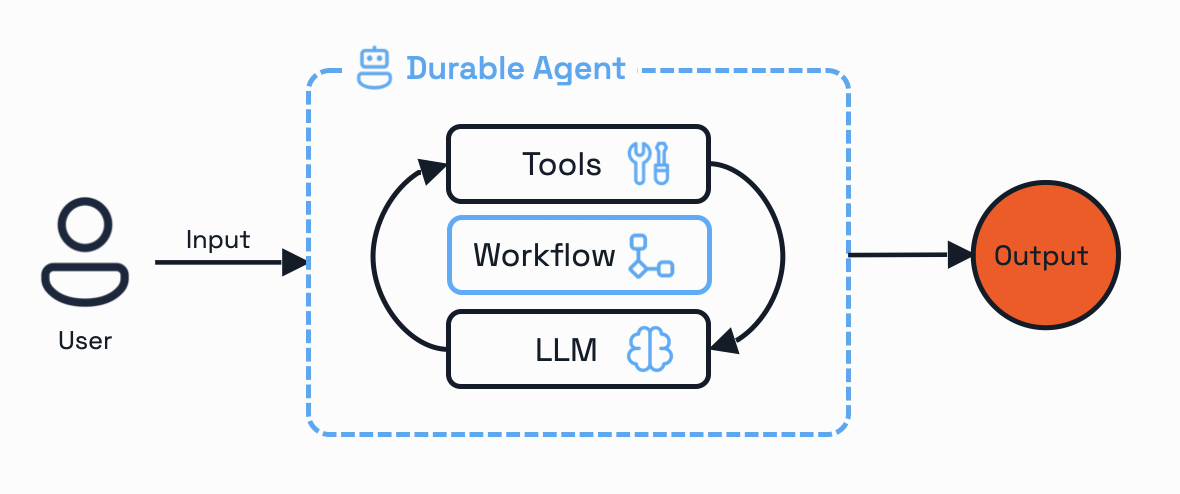
Part 1: Develop Locally with Dapr
Develop and test your durable agents locally using Dapr and the Diagrid Dashboard for workflow visualization and debugging.
Prerequisites
Before you proceed, ensure you have the following prerequisites installed:
Install Diagrid CLI
Download and install the Diagrid CLI:
- MacOS
- Linux
- Windows
curl -o- https://downloads.diagrid.io/cli/install.sh | bash
Move the diagrid binary into your path:
sudo mv ./diagrid /usr/local/bin
curl -o- https://downloads.diagrid.io/cli/install.sh | bash
Move the diagrid binary into your path:
sudo mv ./diagrid /usr/local/bin
Download the PowerShell installer:
iwr -Uri https://downloads.diagrid.io/cli/install.ps1 -OutFile install.ps1
Execute the PowerShell installer:
.\install.ps1
You may need to temporarily set the PowerShell execution policy to Unrestricted to allow the installer to execute.
Move the diagrid.exe executable into your path:
Move-Item .\diagrid.exe "$($env:USERPROFILE)\bin"
Verify the installation:
diagrid version
Set Up Diagrid Dashboard
Run the dashboard:
- MacOS
- Linux
- Windows
docker run \
  -p 8080:8080 \
  ghcr.io/diagridio/diagrid-dashboard:0.0.1
docker run \
  -p 8080:8080 \
  ghcr.io/diagridio/diagrid-dashboard:0.0.1
PowerShell:
docker run `
  -p 8080:8080 `
  public.ecr.aws/d3f9w4q8/local-dash-temp:latest
Command Prompt:
docker run ^
  -p 8080:8080 ^
  ghcr.io/diagridio/diagrid-dashboard:0.0.1
Access the dashboard at http://localhost:8080.
Clone Quickstart Code
Clone the quickstart code from the Diagrid Labs GitHub repository:
diagrid dev quickstart --type durable-agent --language python
Navigate to the quickstart directory:
cd durable-agent-python
Configure OpenAI API Key
Add your OpenAI API key to resources/openai.yaml:
metadata:
  - name: key
    value: "YOUR_OPENAI_API_KEY"
Install Dependencies
Create and activate a Python virtual environment:
python -m venv venv
source venv/bin/activate  # MacOS/Linux
# Or: venv\Scripts\activate  # Windows
Windows users: Use venv\Scripts\Activate.ps1 (PowerShell) or venv\Scripts\activate.bat (Command Prompt). Use conda, pipenv, or your preferred tool if desired.
Install requirements:
pip install -r requirements.txt
Run Locally with Dapr
Run your application with Dapr locally. Make sure your state component is in the components directory.
dapr run --app-id travel-assistant-agent --resources-path resources --app-port 5001 --dapr-http-port 3500 -- python main.py
Your application is now running locally with Dapr. You can view workflow executions in the Diagrid Dashboard.
Interact with the Agent
With the quickstart running locally, test the Durable Agent using curl or the REST Client extension with the test.rest file.
Example 1: Multi-city flights and hotels
Open a new terminal and start a new agent workflow:
curl -i -X POST http://localhost:5001/run \
  -H "Content-Type: application/json" \
  -d '{"task": "Find me flights and hotels to London and Amsterdam"}'
You'll receive a WORKFLOW_ID in response.
Query agent response using the WORKFLOW_ID:
curl -i -X GET http://localhost:5001/run/WORKFLOW_ID
Replace WORKFLOW_ID with the ID returned from the POST request.
This command blocks until the agent completes. The agent will:
- Start a Dapr Workflow and return its instance ID.
- Process your travel request using the configured LLM provider
- Execute the
search_flightstool in parallel for both cities with simulated external API calls - If flights are found, call the
search_hotelstool in parallel for the same destinations - Return available flight and hotel options with pricing information to the LLM
- Persist the final response, execution state, conversation memory, in the local state stores
Example 2: Flights only
Trigger parallel flight searches only:
curl -i -X POST http://localhost:5001/run \
  -H "Content-Type: application/json" \
  -d '{"task": "Find me only flights to Paris and Barcelona"}'
The agent adapts its workflow based on your input.
View in Dashboard
Navigate to http://localhost:8080 to see your workflow executions in the Diagrid Dashboard. You can:
- List all workflow executions for the
travel-assistant-agentapp - Filter and page through executions
- Drill into a single execution to see its status, metadata, and lifecycle
Part 2: Onboard to Catalyst Online
Once you've developed and tested your durable agents locally, onboard to Catalyst Online for managed workflow execution and additional features.
Log in to Catalyst Online
Authenticate to Diagrid Catalyst Online:
diagrid login
Confirm your organization and user details are correct:
diagrid whoami
Onboard to Catalyst Online
The diagrid dev run creates your Catalyst Online project (if needed), provisions resources (App IDs, Components, managed state stores and pubsub), configures environment variables, and sets up the connection between your local environment and Catalyst Online.
diagrid dev run -f dev-python-durable-agent.yaml --project dev-python-durable-agent
Interact with the Agent (Catalyst Online)
Test the Durable Agent API as before. Workflows are now executed by Catalyst Online:
curl -i -X POST http://localhost:5001/run \
  -H "Content-Type: application/json" \
  -d '{"task": "Find me flights and hotels to London and Amsterdam"}'
Monitor in Catalyst Dashboard
Navigate to the Catalyst web console to explore and monitor your agent execution.
1. View Workflow Execution
Use the Workflows section to observe real-time progress. You can examine each action taken, along with its input and output, and the time it took to complete or fail.
The diagram below shows an example workflow executed by the travel assistant agent. It starts by invoking the LLM, performs two parallel flight searches, and then summarizes the results.
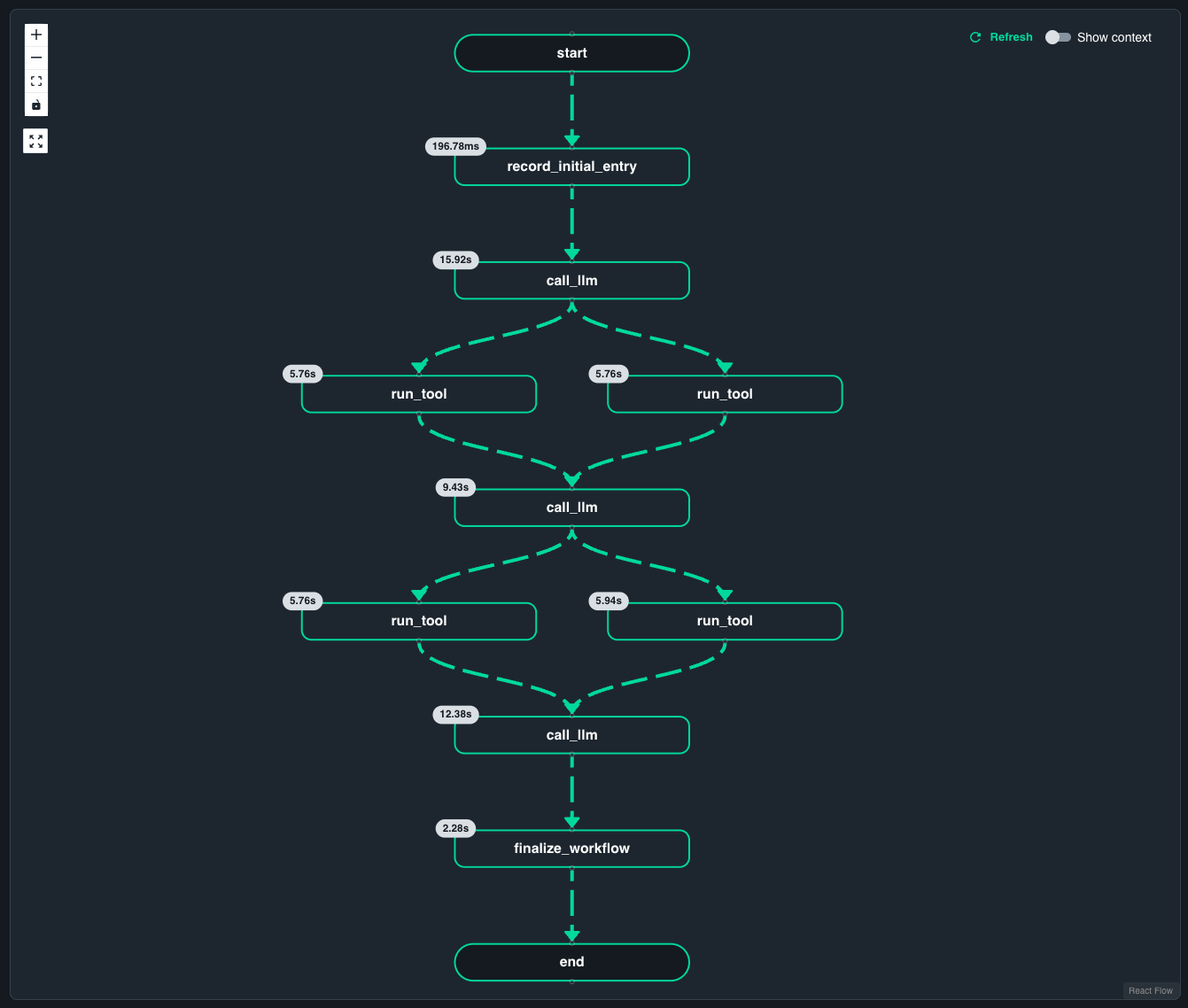
The structure of the workflow may vary depending on the prompt and LLM provider.
2. Examine State Storage
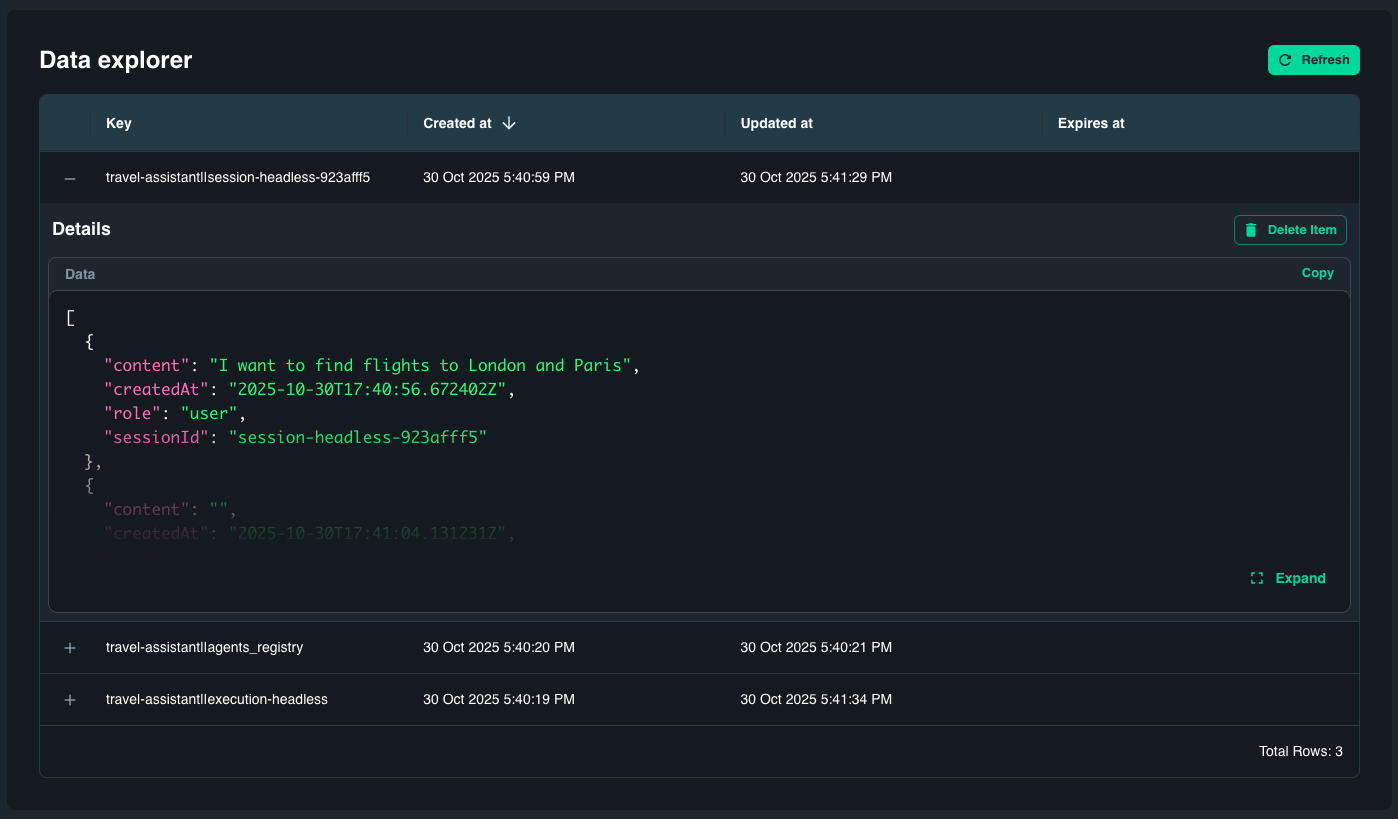
Catalyst automatically maintains three state stores that persist agent context and execution data:
statestore- Workflow execution state and retry informationmemory-state- Conversation history and contextregistry-state- Agent registry and metadata
Inspect key/value data in the Diagrid KV Store data explorer:
3. View Application Map
The Application Map visualizes how the travel-assistant service interacts with Catalyst-managed components and dependencies. It helps identify relationships between the agent, its tools, and external resources.
View detailed workflow logs using the Diagrid CLI:
diagrid workflow get $WORKFLOW_ID --app-id travel-assistant-agent
Clean Up
Clean Up Local ResourcesOptional
Stop the Diagrid Dashboard:
docker stop $(docker ps -q --filter ancestor=diagrid-dashboard:latest)
Remove the quickstart directory if desired:
cd ..
rm -rf durable-agent-quickstart-python
Offload from Catalyst OnlineOptional
To disconnect from Catalyst Online and remove the provisioned resources:
diagrid dev stop --project dev-python-durable-agent
This command will remove the connection between your local environment and Catalyst Online.
The diagrid dev stop command does not delete the Catalyst Online project and contained resources. To delete the entire project, use diagrid project delete <project-name>.