Operate AI agents
This page is written for platform engineers and business operators who run AI agents on Catalyst. It covers how to find a running agent, what each piece of the agent execution view shows, and which operations are best done from the console versus the CLI. For authoring agents, see Develop AI agents.
Find a running agent
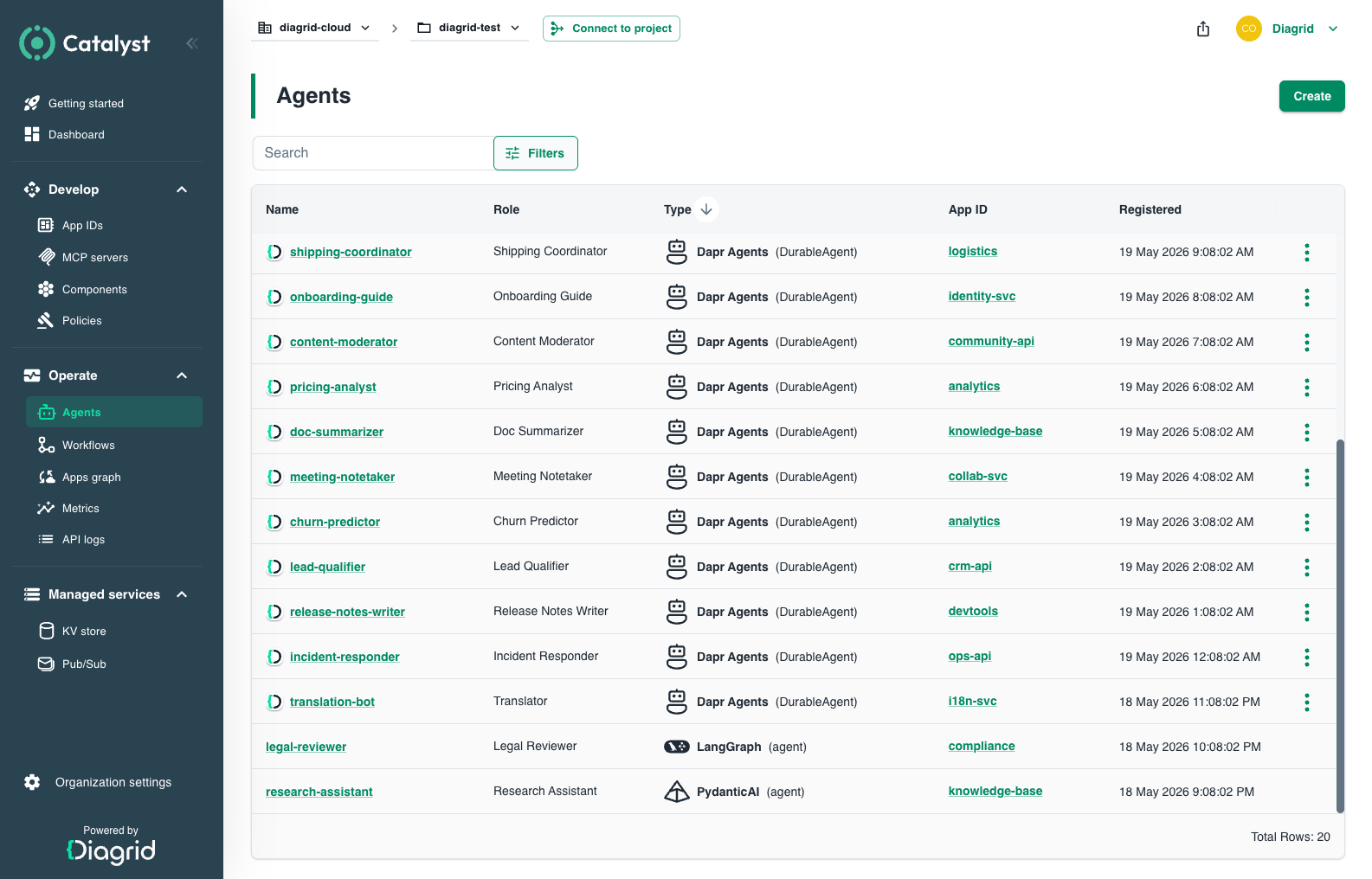
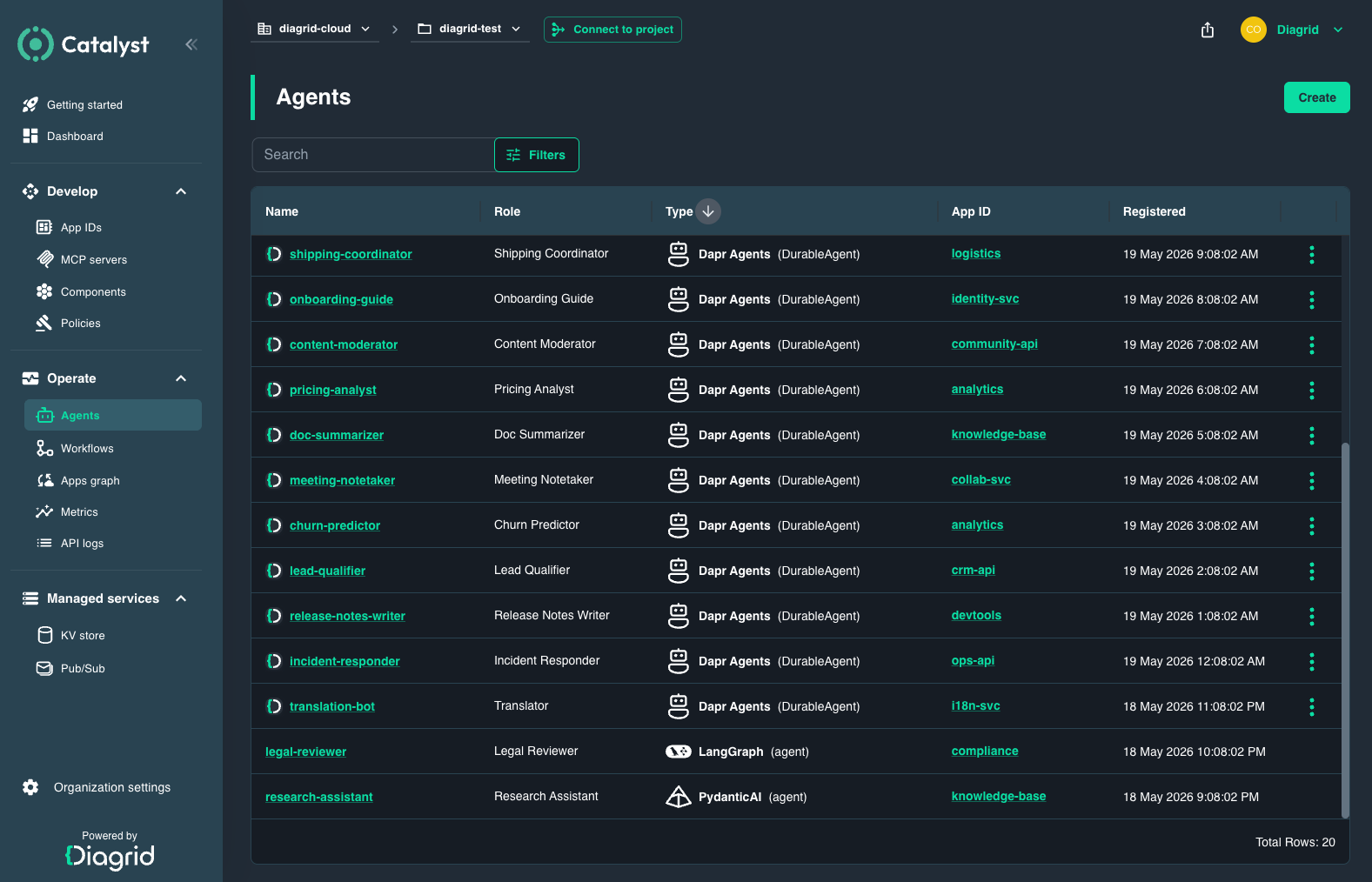
The Agents page lists every agent registered in the current project. Each agent is associated with an App ID — the identity Catalyst assigns to the workload hosting the agent. Each row shows:
- Name — the agent identifier. Agents provisioned by Catalyst are marked as Managed agent.
- Role — the agent's declared role (for example
researcher,planner). - Type — the framework and agent type, formatted as
Framework (AgentType). Supported frameworks include Dapr Agents, CrewAI, LangGraph, Strands, Microsoft Agent Framework, Google ADK, OpenAI Agents, Pydantic AI, and Deep Agents — see Develop AI agents for the full list. - App ID — the workload hosting the agent. Click through to see the App ID's components, policies, and metrics.
- Registered — when the agent was first registered with the project.
Filter by App ID, agent name, or type to narrow the list during an incident — for example, all LangGraph agents on app-billing.
Agent execution view
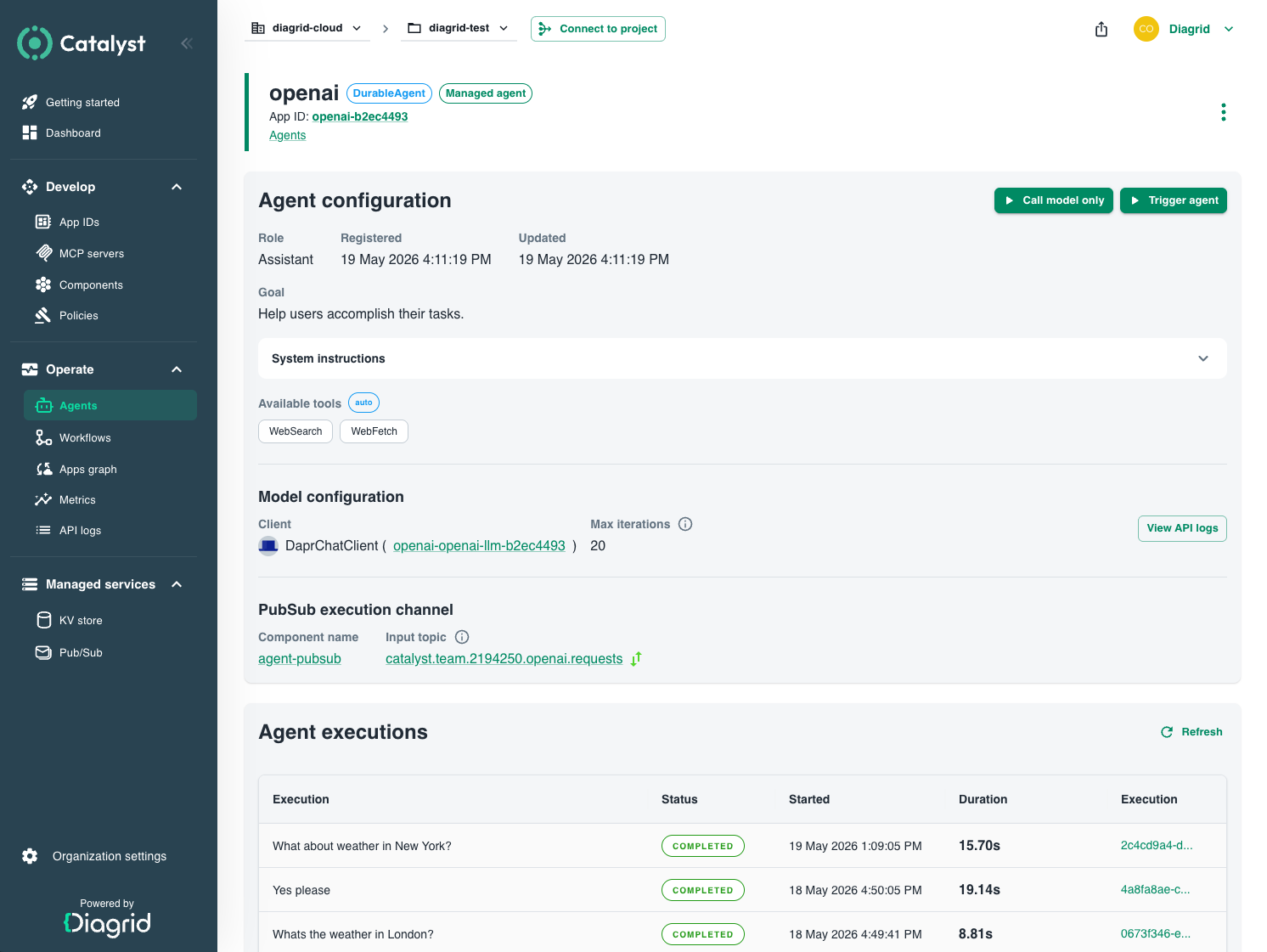
Click an agent to open the detail view. The header shows the agent name, its App ID, and badges identifying the agent type (for example DurableAgent) and whether it is Managed agent by Catalyst. Two actions are available from the header:
- Trigger agent — invoke the agent ad-hoc with a payload, useful for reproducing a reported failure.
- Call model only — send a request directly to the model without going through the agent's tool loop, useful for confirming the LLM is responsive when an agent is stuck.
Below the header, the view is split into Agent configuration and Agent executions.
Agent configuration
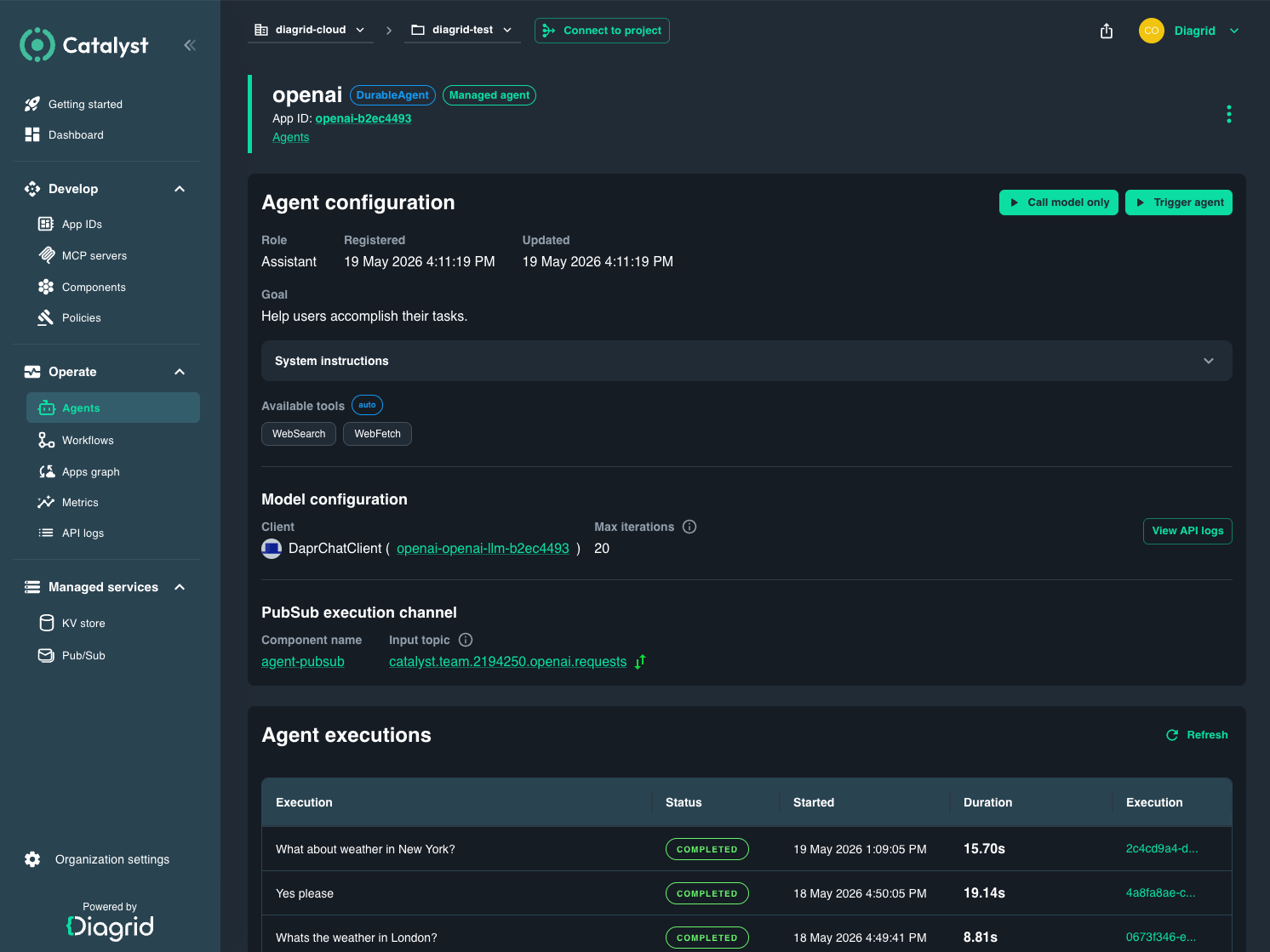
The configuration panel shows what the agent was registered with — useful for confirming an incident matches a recent deploy:
- Role, Registered, and Updated timestamps.
- Goal — the agent's stated objective.
- System instructions — the system prompt the agent runs with (collapsible).
- Available tools — every tool the agent can call. An
autobadge means the framework selects tools dynamically. Use this list to confirm a missing or unexpected tool is the cause of a failure before inspecting executions. - Model configuration — the model client (for example
DaprChatClient), the resource it points at, and Max iterations. The View API logs button jumps to API Logs filtered to this agent's LLM calls. - PubSub execution channel — the pub/sub component and input topic used to drive the agent. For multi-agent setups, this is where broadcast and per-agent topics surface.
If the agent was registered with persistent memory, a memory section also appears showing the short-term and long-term components backing the agent's conversation history.
Agent executions
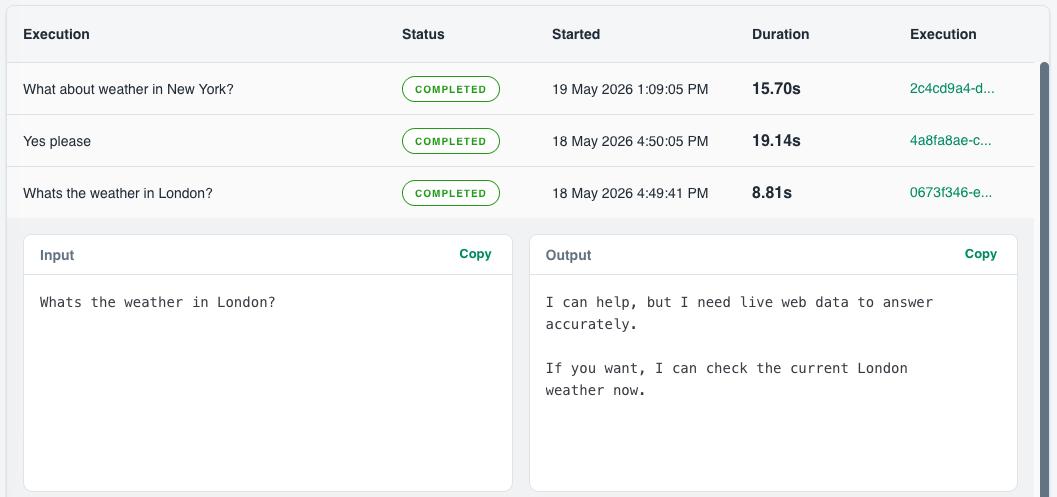
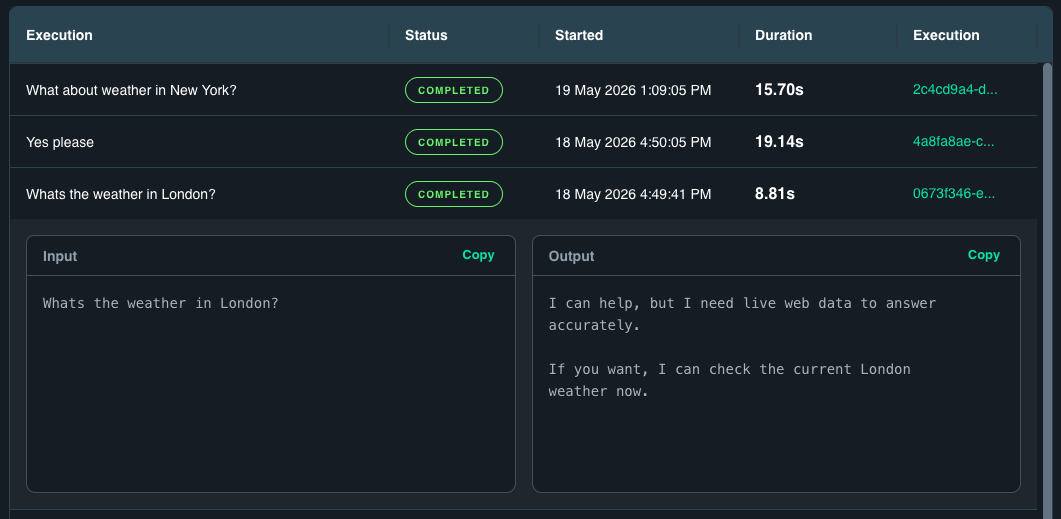
Each agent execution is a durable workflow — a run whose state is checkpointed so it survives process crashes and restarts. The executions list captures:
- Execution — the task description from the input (truncated) or the workflow ID.
- Status —
running,completed,failed,canceled,terminated,suspended,pending, orstalled. - Started and Duration.
- Execution ID — click through to the per-execution detail.
Reading a single execution
Opening an execution shows:
-
Input and Output — JSON-formatted side-by-side. Catalyst auto-extracts the
taskandcontentfields when present, and falls back to the raw payload otherwise. This is the first thing to check when an agent returns the wrong answer. -
Conversation history — for agents configured with memory, the conversation turns persist to the configured memory store (Redis, Postgres, etc.) and replay into each LLM call. They appear in the execution detail as the inputs passed to each model call.
-
Step-by-step history — every execution links to the underlying durable workflow, where the full step graph shows each LLM call, tool invocation, and child workflow with their inputs, outputs, and timestamps. This is where you confirm which tool a failing agent looped on, or which model call produced a malformed plan. See Operate workflows for the full execution graph reference.
-
Error resolution — for failed or stalled executions, rerun, resume, terminate, or purge using the same controls used for any durable workflow.
Combine the agent view with API Logs to see the underlying LLM calls — including model, token counts, and latency — that each execution triggered.
CLI commands
The diagrid agent command surfaces agents registered in a project:
# List every agent in the project
diagrid agent registry list --project my-project

# Get a single agent's configuration
diagrid agent registry get my-agent --project my-project

# Disambiguate when two agents share a name across App IDs
diagrid agent registry get my-agent --app-id my-app --project my-project

# Machine-readable output for scripting
diagrid agent registry list --project my-project --output json
Because agent executions run as durable workflows, the diagrid workflow command is what you use to act on a specific run. As of CLI v1.39.0 workflow list is project-wide — there is no --app-id or --status filter, so narrow the result set with jq or --output json:
# List workflow executions across the project (max 250)
diagrid workflow list --project my-project --limit 250 --output json

# Inspect a single execution — workflow ID is positional
diagrid workflow get <workflow-id> --app-id my-agent-app

# Pause and resume an in-flight execution
diagrid workflow pause --app-id my-agent-app --instance-id <id>
diagrid workflow resume --app-id my-agent-app --instance-id <id>

# Terminate a stuck execution
diagrid workflow terminate --app-id my-agent-app --instance-id <id>

# Rerun from a specific event with a new workflow ID
diagrid workflow rerun \
  --app-id my-agent-app \
  --instance-id <id> \
  --event-id <event-id> \
  --new-workflow-id <new-id>
CLI or console?
| Task | Best surface | Why |
|---|---|---|
| Browse agents and confirm registration | Console | Filtered list with framework, role, and App ID at a glance. |
| Read an execution's step-level history | Console | The execution graph is visual; the CLI returns JSON only. |
| Cross-reference an execution with LLM token usage | Console | Click through from the agent's Model configuration to API Logs. |
| Recover a single failed execution after a fix | Console | One-click rerun; the CLI rerun requires --event-id and --new-workflow-id per call. |
| Wire agent inspection into runbooks or CI | CLI | Structured --output json and exit codes are scriptable; filter client-side with jq. |
| Pull an agent's configuration into a ticket | CLI | diagrid agent registry get … -o yaml copies cleanly. |
During an incident
A typical triage path for "an agent is misbehaving":
- Open Agents, filter to the affected App ID, and confirm the agent's framework, role, and Available tools match the expected deploy.
- Open Agent executions, filter to
failedorstalled, and click into the most recent one. - Compare Input and Output; if the agent looped, follow through to the underlying workflow to find the repeated tool activity.
- Cross-reference with API Logs for the failing LLM call (model, status, latency, token count).
- If the agent's access to a downstream service or MCP server looks wrong, confirm the App ID's policies still permit the call — denied calls show up in API Logs as failed requests.
- Once the root cause is fixed, rerun the affected executions. Use the console for ad-hoc reruns — the CLI
workflow rerunneeds the event ID to rerun from and a new workflow ID, so it's better suited to scripted recovery than one-offs.
For common runtime issues — stalled executions, tool loops, memory not persisting — see Troubleshooting / FAQ.
Next steps
Operate workflows
Inspect the step-by-step execution graph that backs every agent run.
API Logs
Drill into LLM and Dapr API calls — model, status, token counts, latency.
Develop AI agents
Build durable agents in your framework of choice.
Troubleshooting & FAQ
Fixes for common agent runtime issues and console errors.