Operate workflows
The Workflows page in the Catalyst console gives platform engineers and business operators a live view of the workflows in a project.
The sections below cover the console features that help in these scenarios:
- Incident response. A downstream service is failing. Find and pause the affected instances stuck retrying on that service, fix or scale the downstream system, then resume them.
- Forensics on a failed instance. A workflow failed. Pull its history to see the exact activity that failed, the input it was called with, and the recorded exception.
- Verifying integrity. A workflow runs a regulated process. Confirm its recorded history has not been altered, and identify any instance whose signed history has been tampered with.
- Routine housekeeping. Long-running tenants accumulate completed instances. Periodically purge completed instances older than your retention window to keep listings responsive and storage bounded.
- Unblocking a stuck approval. A workflow has been waiting for an external event for days because the approver is unreachable. Find the affected instance and raise the event with the agreed payload to push the workflow forward without changing code.
- Killing a bad batch. A bug in an upstream system started workflows with malformed input. Filter the executions down to the affected ones, select them, and terminate them together rather than one at a time.
To manage workflows from the command line, see the diagrid workflow subcommand reference.
Workflows list
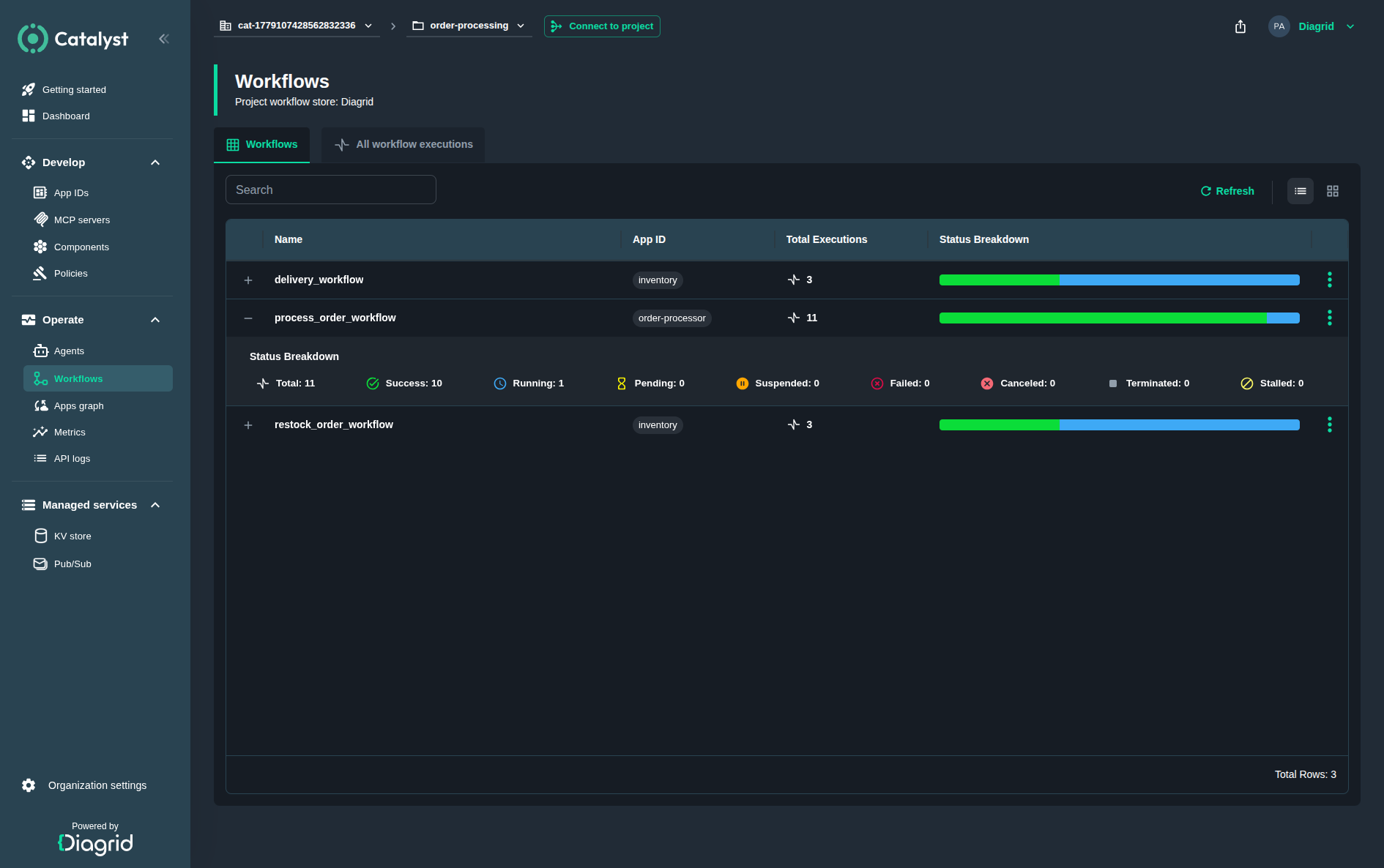
The Workflows view shows a summary of the executions per workflow, including number of executions and an execution status breakdown. Expanding a workflow entry in the list shows the detailed execution statistics by status.
Workflow details
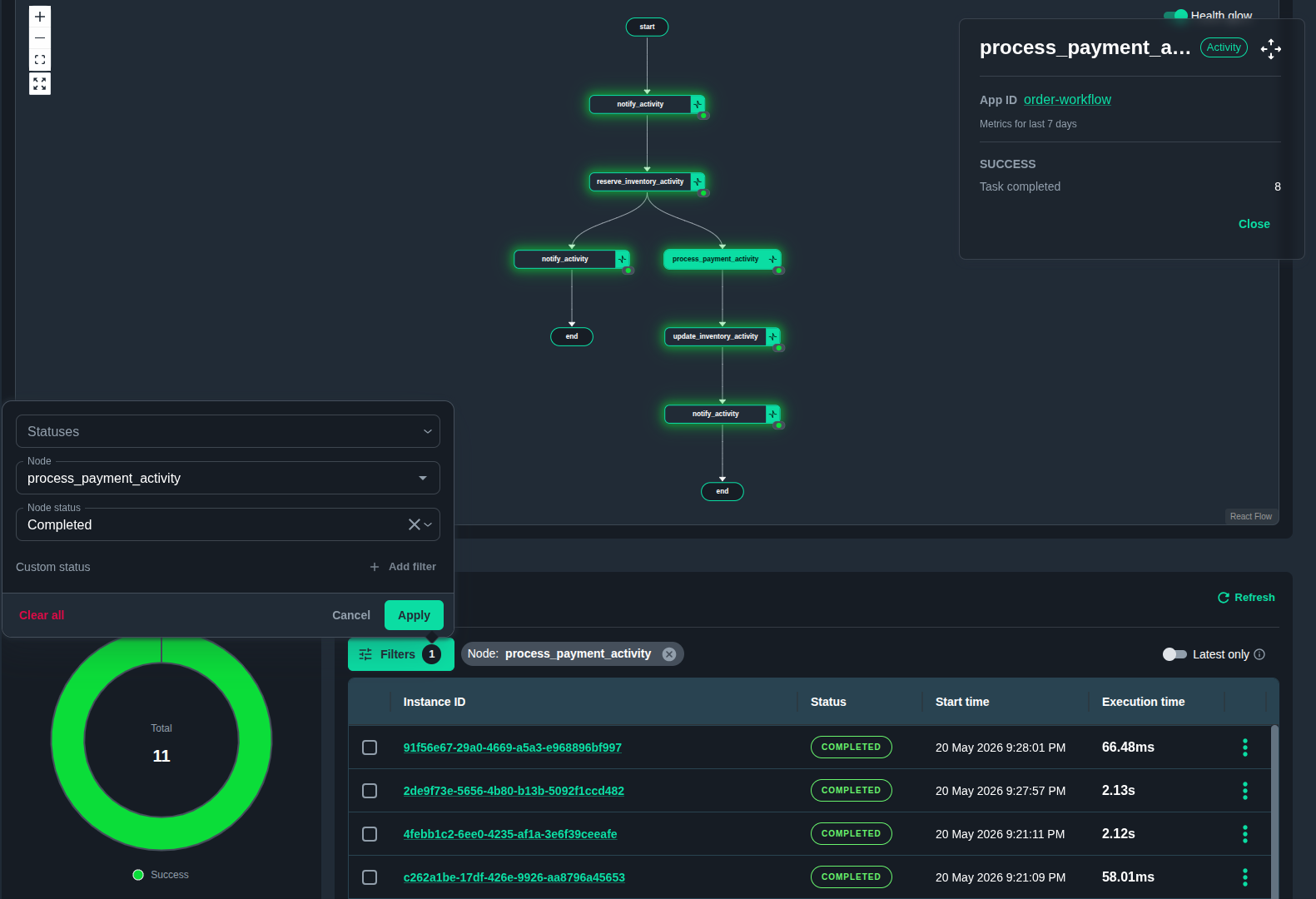
Selecting a workflow from the workflows view displays details of the most recent executions, with a breakdown by the execution statuses and a graph of the execution history.
Selecting an execution from the list shows the execution details view.
Selecting a node from the graph filters executions that executed this particular event. This is useful for quickly finding workflows that ran a conditional activity, such as requesting approval or fraud analysis.
The filter dialog narrows the list further by the status of the selected node and the status of the execution. This allows, for example, filtering all running executions that failed in the "notify" activity.
You can run actions on each execution listed in the view. See Workflow execution actions for the actions available.

Sharing a filtered view
The workflow details view keeps its status and timespan filters in the address bar, so copying the URL captures what you are looking at. Paste the link into an incident channel and whoever opens it sees the same executions you do.
Filter by status with a repeated status parameter:
/workflows/names/<appId>/<workflow>?status=failed
/workflows/names/<appId>/<workflow>?status=failed&status=terminated
The values are the ones the filter menu offers. A status the console does not recognize is dropped rather than passed on, so a mistyped link opens on every status instead of failing.
Set the time range either as a width or as explicit bounds:
/workflows/names/<appId>/<workflow>?window=6h
/workflows/names/<appId>/<workflow>?from=2026-09-01T09:00:00Z&to=2026-09-01T17:00:00Z
window accepts 5m, 30m, 60m, 6h, 12h, 24h, 3d, 7d, or all for no time filter. Without a time parameter the view opens on the last 7 days.
A link needs both bounds, or one bound and a window to measure from it. A single bound on its own is ignored — resolving it would need a width from the reader's own settings, which would make the link show something different depending on who opened it. When from and to are both present, window is ignored.
All workflow executions view
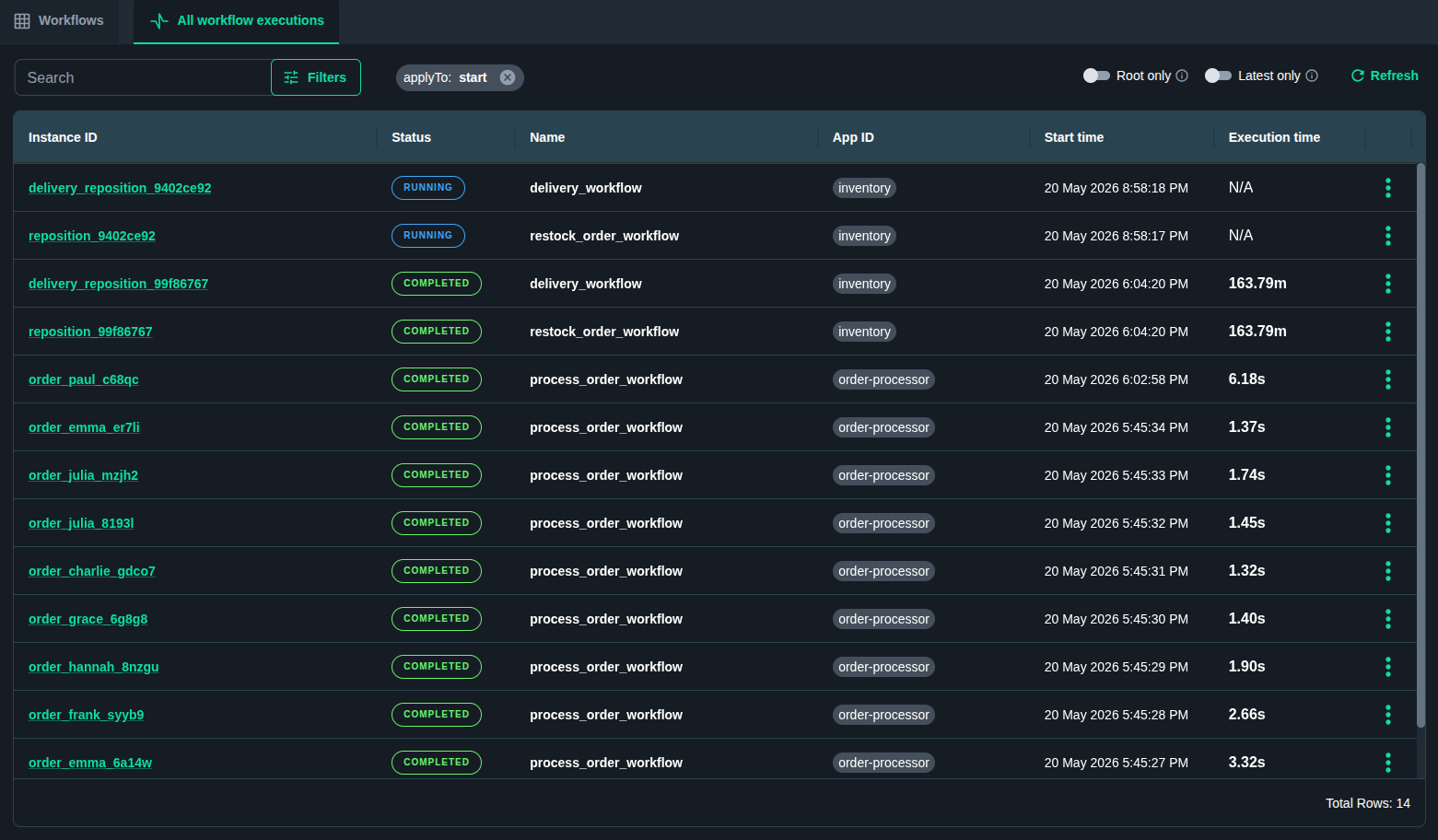
The All workflow executions view shows a list of executions of workflows across all apps, with their execution status, creation time and execution time.
Filtering workflow executions
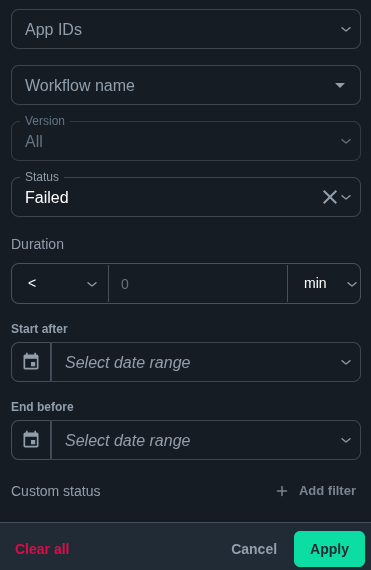
The workflow executions list can be filtered by multiple criteria such as execution status, name, app, execution time, and others.

Executing actions
You can run actions on each execution listed in the view. See Workflow execution actions for the actions available.

Workflow execution details
Selecting a workflow execution displays the details of the execution: input, output and the history graph.
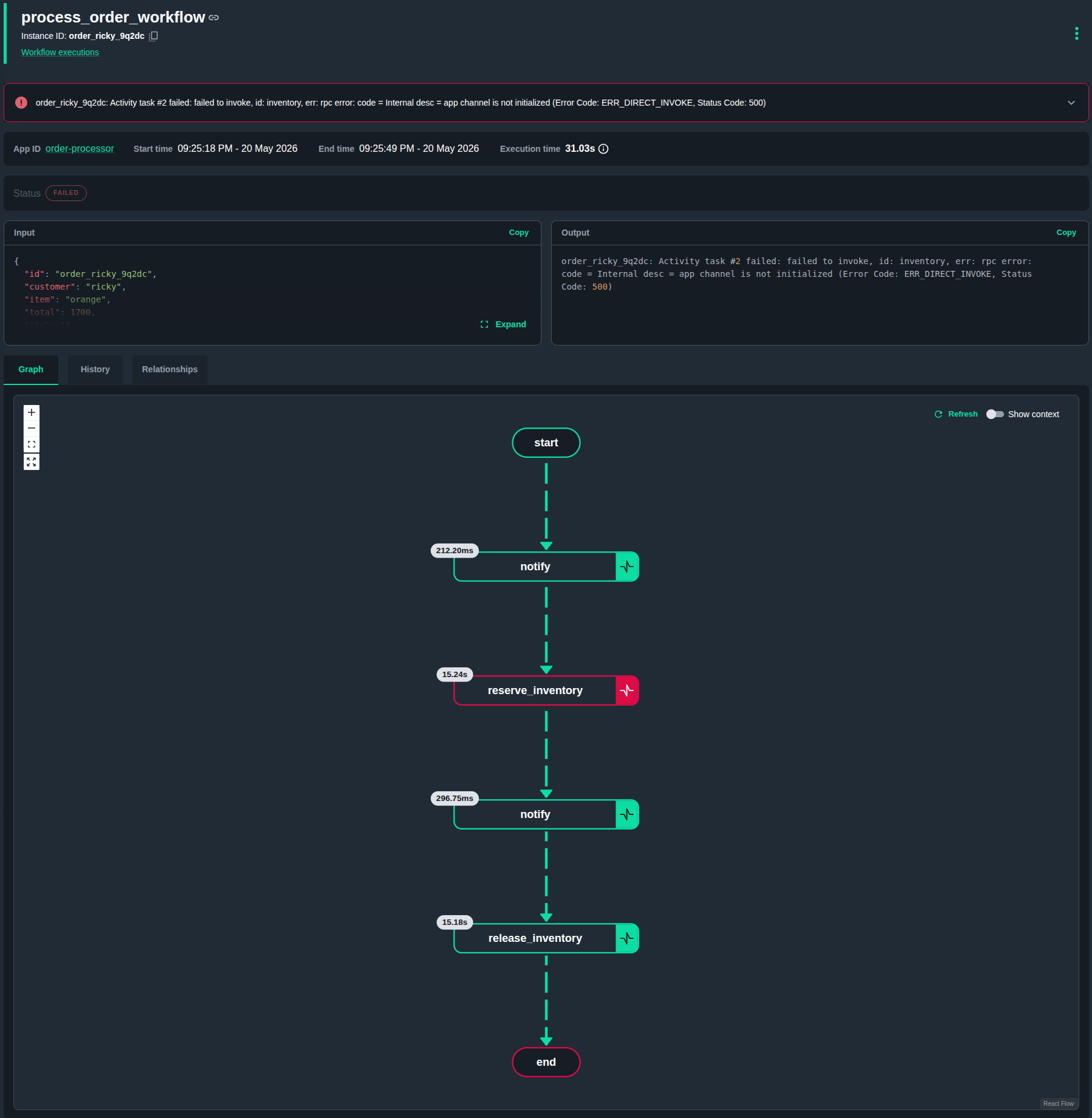
Graph node details
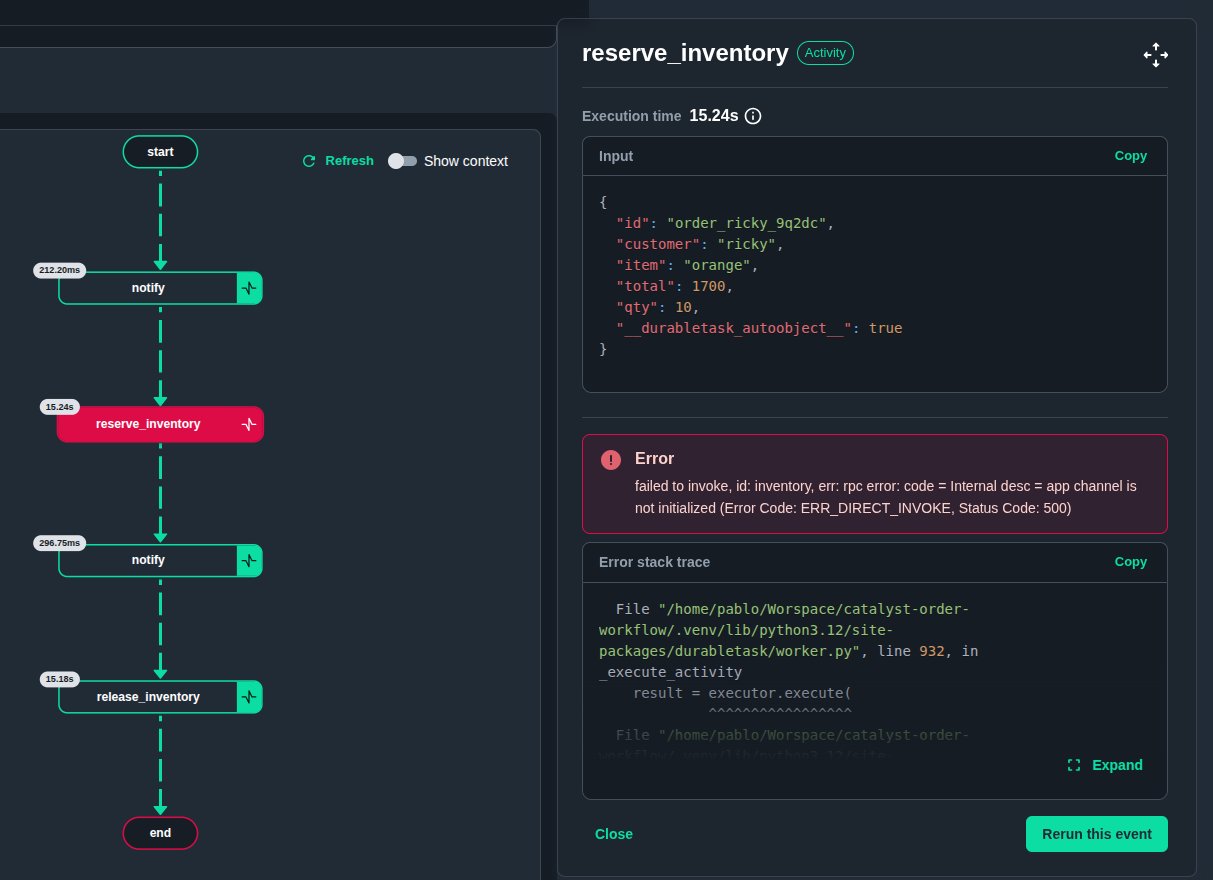
Selecting any node in the graph opens a details dialog. Selecting a failed activity, for example, shows its inputs, outputs and the error message, if any — in this case, a stack trace.
Event history
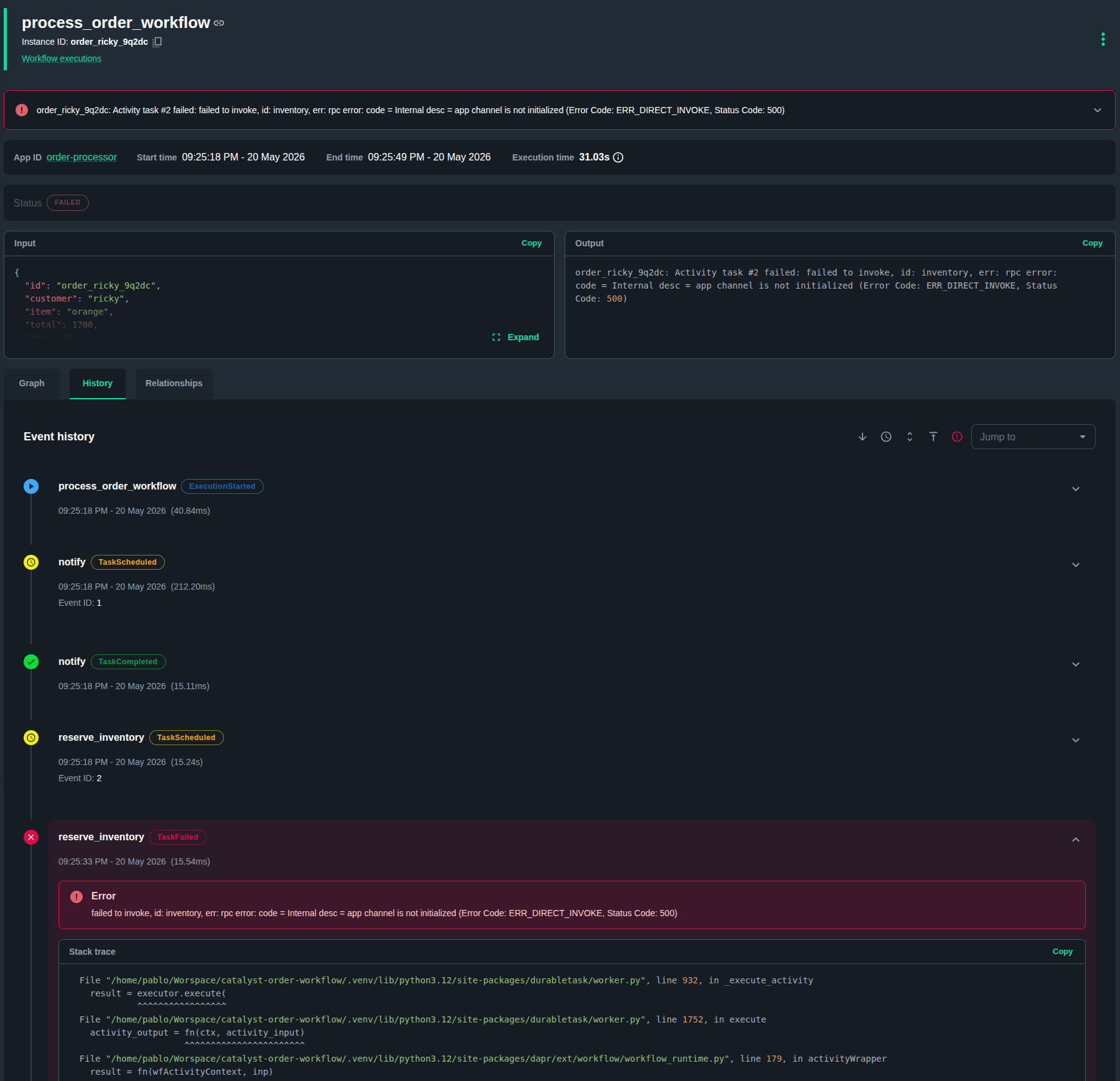
The history shows a step-by-step trace of the execution. This is useful for debugging workflow executions.
Verify execution history
On a project created with workflow verification enabled, Catalyst signs each workflow's history in blocks and re-verifies it whenever an instance is read. Signed projects are marked with a History signing enabled chip on the Workflows page. See Tamper-evident attestation for what each status means.
Execution verdict and signature details
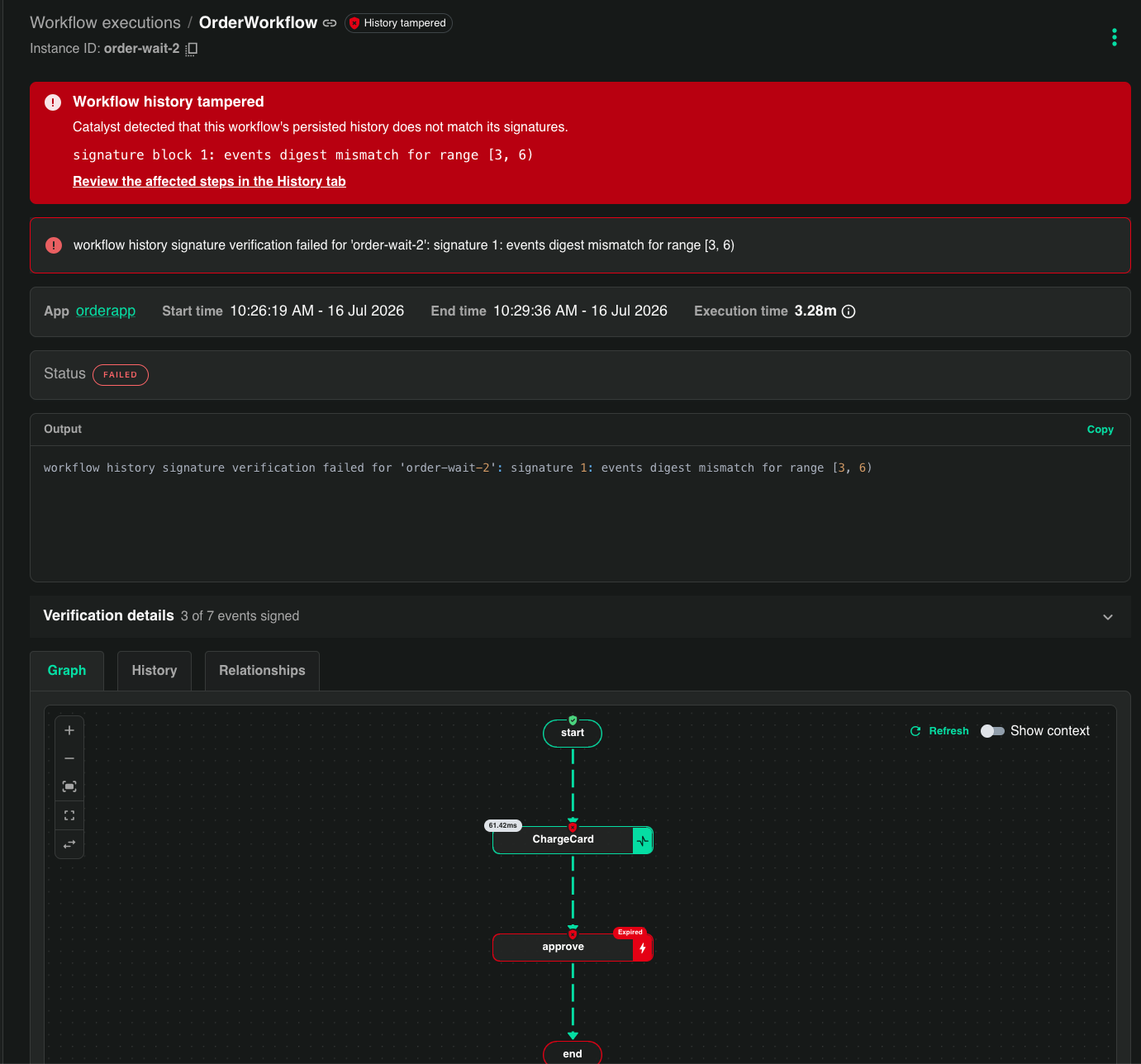
Opening an execution shows its verdict as a badge next to the workflow name: History verified, History tampered, or Not verified.
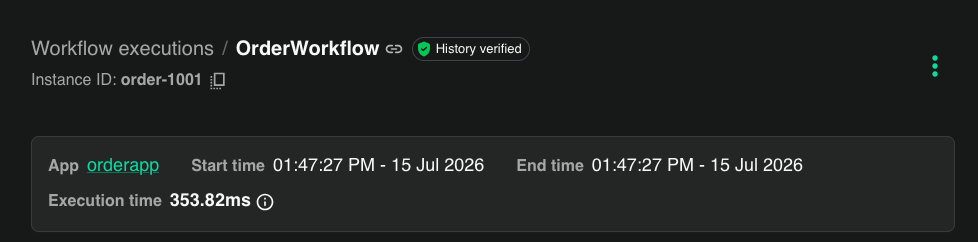
The Verification details panel breaks the verdict down — how many events are covered by valid signatures, each signature block, and for each block the Signing identity: the SPIFFE identity of the workload that produced it, with its full certificate chain available under View certificates.
Per-step verification
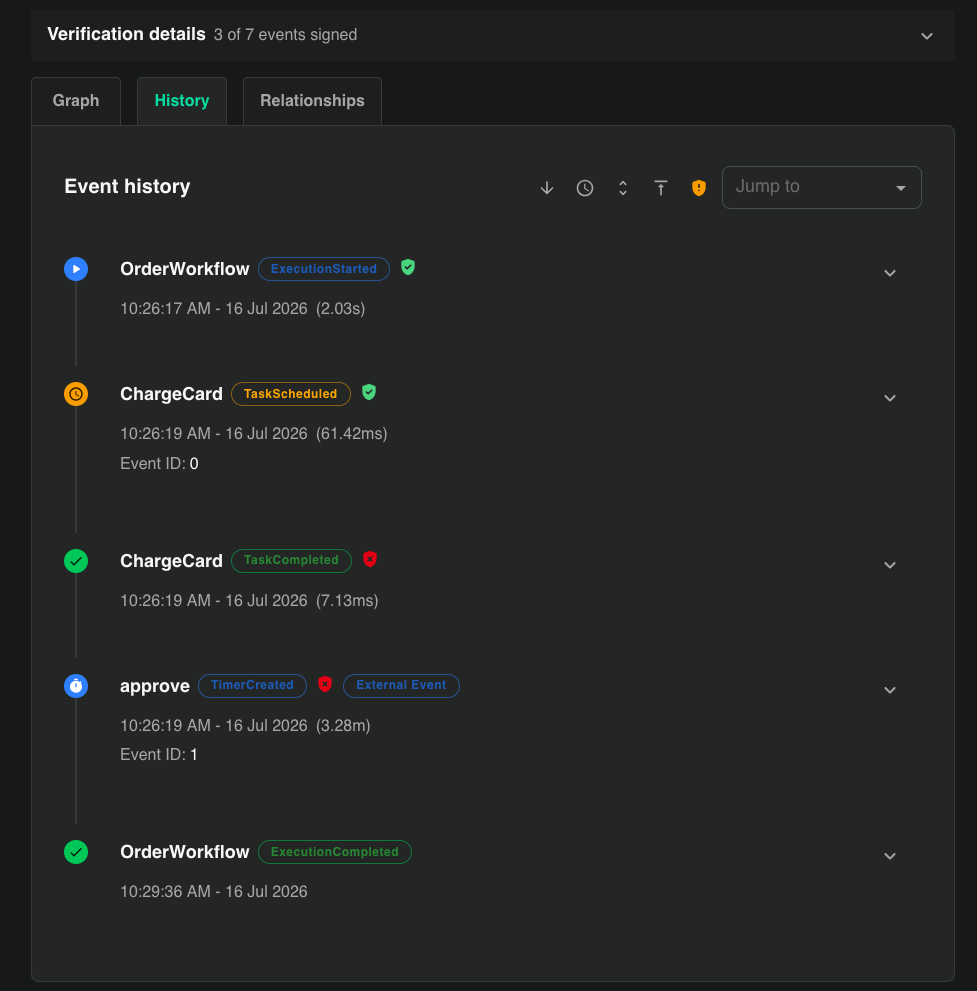
The History tab annotates every step with its own verification status, and the execution graph marks verified steps with a verification seal. Selecting a node shows whether the signed records of its scheduling and completion verified.
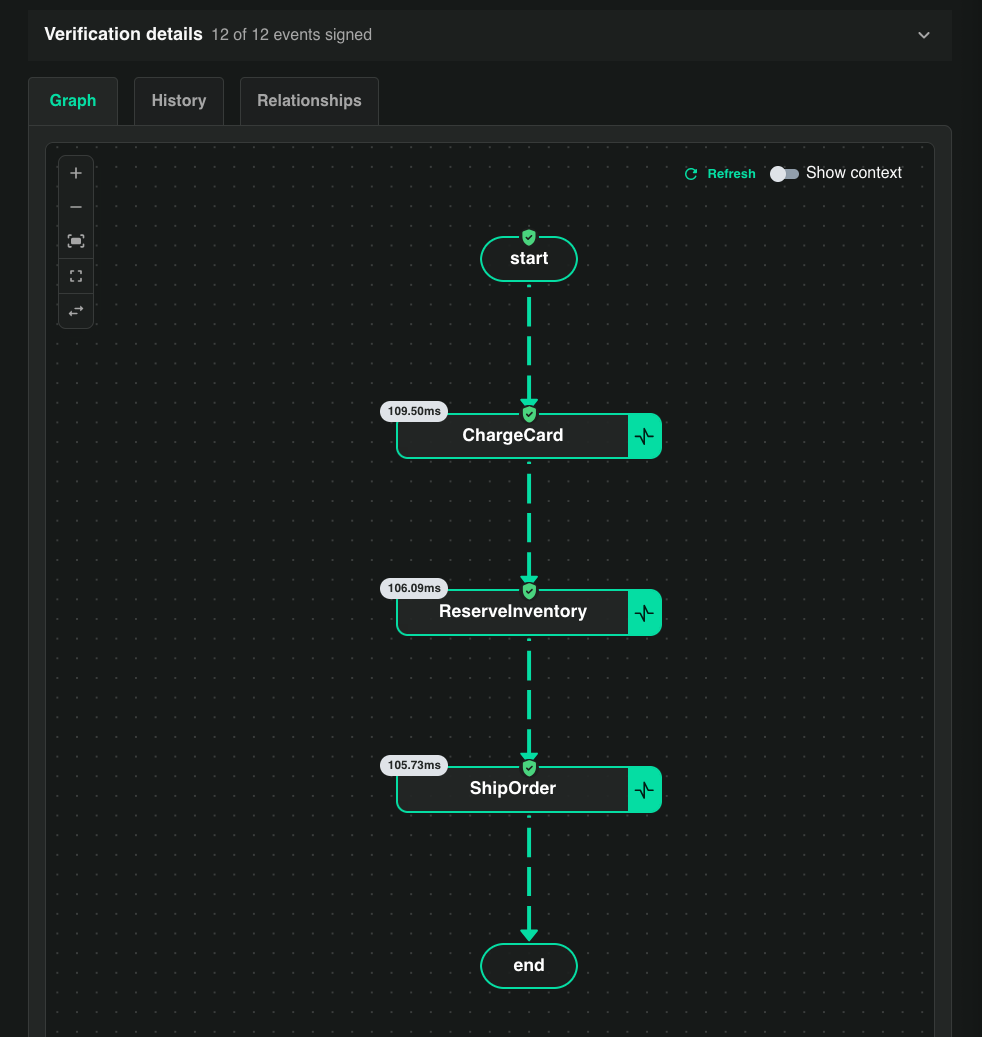
Spotting tampered executions
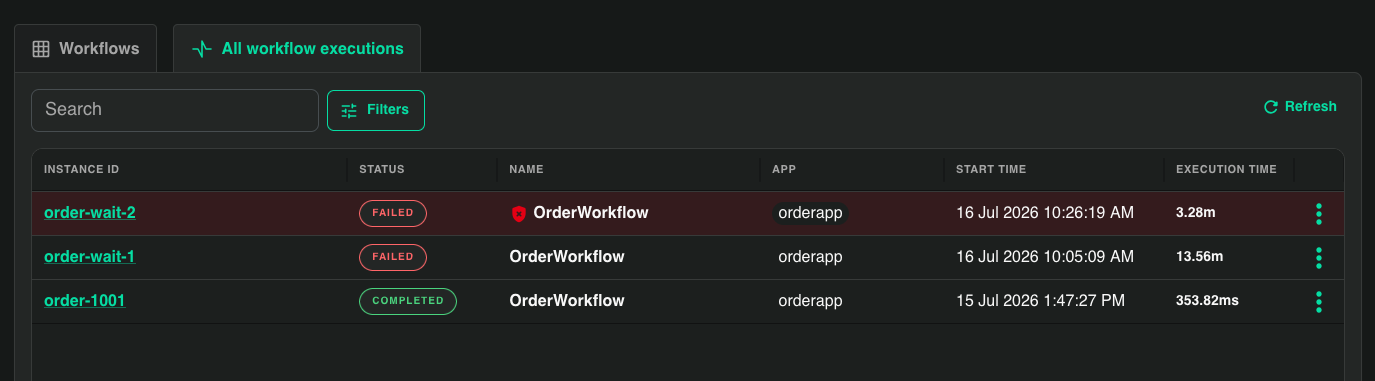
In the All workflow executions view, a tampered instance is flagged with a red marker next to its workflow name and is shown as FAILED:
Opening it shows the full verdict: a History tampered badge, a banner explaining that its persisted history no longer matches its signatures — with a link to review the affected steps in the History tab — and the Verification details summary of how many events are signed.
The History tab marks exactly which events failed verification, so you can see what the tampering touched. Use the Show unverified/tampered only filter in the toolbar to jump straight to the affected steps:
To verify from the CLI or produce portable proof an auditor can check offline, see Verify workflow execution history.
Workflow execution actions
The action menu on each execution — in the workflow details view and in the all workflow executions view — offers Run new from, Suspend, Resume, Raise event, Terminate and Purge.
Which of them you can use depends on the execution's lifecycle state. An action that does not apply to the current state stays in the menu but is disabled, with a tooltip explaining which states it accepts:
| Action | What it does | Available when the execution is |
|---|---|---|
| Run new from | Starts a new execution from a chosen event in this one's history | Completed, Failed or Terminated |
| Suspend | Stops the runtime dispatching new work for the execution | Running |
| Resume | Restarts dispatch for a suspended execution | Suspended |
| Raise event | Delivers an external event the execution is waiting on | Running, Pending or Suspended |
| Terminate | Ends the execution before it completes | Running, Pending or Suspended |
| Purge | Permanently deletes the execution and its history from the state store | Completed, Failed or Terminated |
Two exceptions apply to every action in the table:
- A stalled execution offers no actions at all.
- A durable agent workflow does not support the workflow management APIs, so its actions are always disabled.
Purge carries two conditions the other actions do not. It needs delete access to workflows, where the rest need update access, so a role that can terminate an execution cannot necessarily purge one. And it is irreversible: the execution's input, output and full event history are deleted from the state store. Purge offers Also apply to child workflows, on by default. Purging from an execution's detail page returns you to the executions list, because the page you were on no longer exists.
Acting on several executions at once
In the workflow details view, the executions list has a checkbox on each row. Selecting one or more rows reveals Suspend, Resume, Terminate and Purge buttons that apply to the whole selection, so a filter followed by a select-all is how you act on a batch rather than an instance.
Filter first: the buttons act on what you have selected, and the same lifecycle state rules apply to each execution individually. An execution in a state the operation does not accept is reported back as a failure rather than silently skipped, and the executions that failed stay selected so you can retry them without picking them again.
Two differences from the single-execution actions:
- Terminate and Purge offer Also apply to child workflows, on by default. Clearing it acts only on the selected executions and leaves their children alone.
- Suspend and Resume require a reason, which is recorded against every execution in the selection.
Raise event has no bulk form — each event carries its own payload. Bulk actions are not offered on the all workflow executions view, or on durable agent workflows.
The same operations are available from the CLI as diagrid workflow rerun, pause, resume, raise-event, terminate and purge. Unlike the console, whose bulk actions act on the rows you have selected, diagrid workflow purge accepts --bulk to purge every execution matching a set of filters.
The workflow worker application must be running for these actions to take effect. Requesting any of them while the worker application is not running returns an API error.
History archival
Workflow execution history can be archived to cheaper, long-term storage. This keeps an audit of workflow executions for compliance and traceability over years, without paying to hold every execution in the more expensive database.
Archival writes through a Dapr output binding, so you can use any supported output binding as the archive destination. Configure it per app, naming both the destination binding and at least one terminal state to archive:
diagrid app create <my-app> --archive-binding-name <my-binding> --archive-binding-type <my-archive-binding-type> --archive-completed
The three state flags — --archive-completed, --archive-failed and --archive-terminated — are each off by default, so a destination configured without any of them archives nothing. Combine them to cover more than one terminal state.
To add or change archiving on an app that already exists, pass the same flags to diagrid app update:
diagrid app update <my-app> --archive-binding-name <my-binding> --archive-binding-type <my-archive-binding-type> --archive-completed --archive-failed
Once configured, executions are archived whenever they are purged or when a configured retention policy is applied. To stop archiving a state, pass =false to its flag on diagrid app update; to turn archiving off entirely, pass an empty value to --archive-binding-name.
Workflow notifications
Workflow notifications raise an alert the moment an execution reaches a state that requires your attention — a failed or stalled execution, for example.
Notifications can be visualized in the Catalyst console.
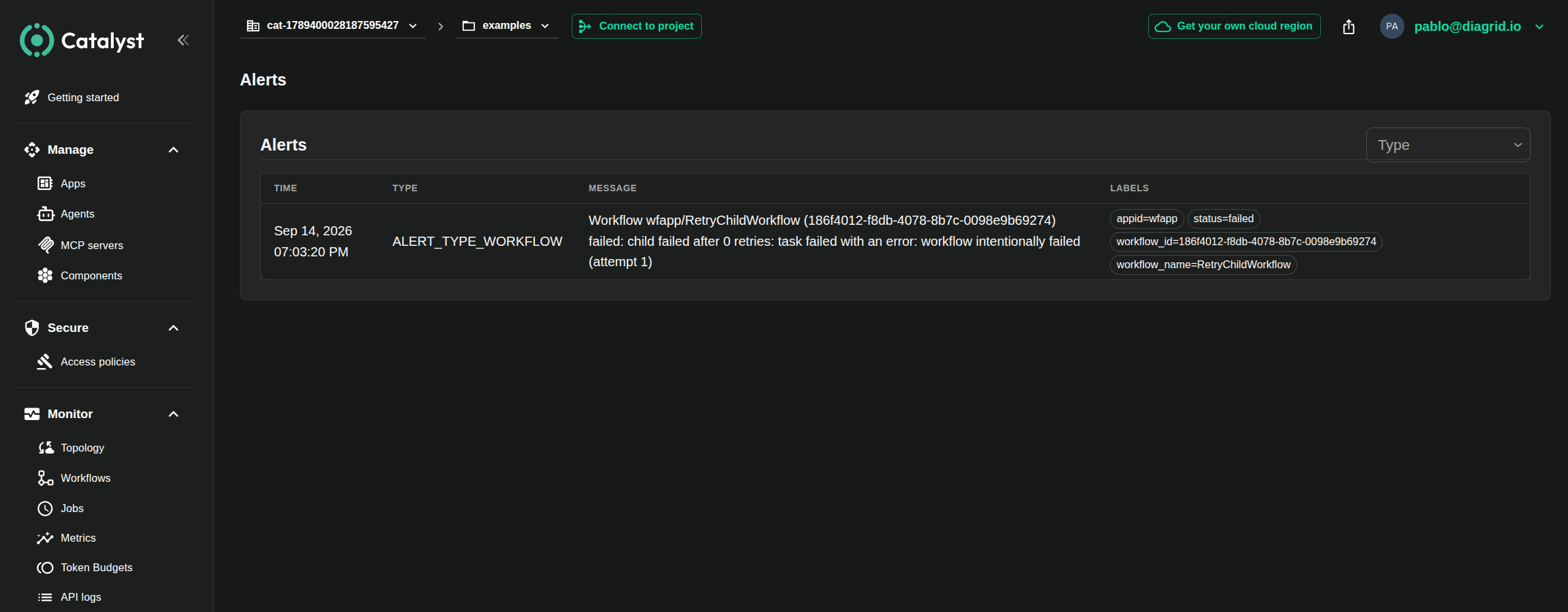
Notifications are configured per app, and at least one state must be selected:
diagrid app create <my-app> --workflow-notifications-failed
| Flag | Raises an alert when an execution |
|---|---|
--workflow-notifications-failed | Reaches the Failed terminal state |
--workflow-notifications-terminated | Reaches the Terminated terminal state |
--workflow-notifications-stalled | Becomes stalled — the runtime has stopped making progress on it, and the execution offers no actions |
Completed executions cannot be selected. Notifications report the outcomes that need someone's attention.
Two more flags narrow which executions qualify:
--workflow-notifications-nametakes a regular expression that must match the whole workflow name.order-.*matchesorder-fulfillmentbut notplace-order-fulfillment. Leave it unset to notify for every workflow.--workflow-notifications-root-onlyrestricts notifications to executions with no parent, so one failing parent does not also raise an alert for each of its children.
Neither narrowing flag selects a state, so passing one without a state flag is rejected rather than accepted as a policy that would notify nothing.
To add or change notifications on an app that already exists, pass the same flags to diagrid app update:
diagrid app update <my-app> --workflow-notifications-name "billing-.*" --workflow-notifications-failed --workflow-notifications-root-only
Pass =false to a state flag to stop notifying on that state, leaving the rest of the configuration alone. Turning all three states off disables notifications for the app, which also clears the name pattern and the root-only restriction — so that combination cannot be passed together with --workflow-notifications-name or --workflow-notifications-root-only=true.
Each notification is raised as an alert on the app's project, labelled with the app ID, the execution id, the workflow name, the state that raised it, and the parent execution id when the workflow has one. Because the runtime reports an execution's state on every state save, the same outcome can be reported more than once; repeats carry the same alert and are collapsed rather than delivered again.
Raising an alert never holds up a workflow: a workflow's own progress does not depend on its notifications getting through. An alert the app cannot publish is dropped rather than retried.
See also
- Workflows concept — what workflows are and why to use them
- Durable execution — how history, replay, and determinism work
- Develop workflows — SDK guides and the orchestrator API per language
- Workflow patterns — orchestrator-side patterns including external events
- Workflow versioning — deploying code changes without breaking in-flight instances
- Workflow CLI —
diagrid workflowsubcommand reference - App CLI — the
diagrid app createanddiagrid app updateflags that configure archiving and notifications - Operate — other day-2 administration topics
