Alerts and notifications
An alert is a record that a Catalyst component observed something worth notifying you about. Catalyst keeps every alert raised for your organization and shows it in the console. Alerts can also be sent to a webhook by defining a destination and a notification route that points to it.
Before you begin
- The Diagrid CLI, installed and logged in with
diagrid login. - A project. Any role can read the project's routes and destinations; creating, changing, or deleting them needs the Operator or Admin role on the project. See Role definitions.
- To deliver alerts, a webhook endpoint that accepts
POSTrequests.
What raises an alert
Catalyst raises two kinds of alert today:
| Alert type | Raised when |
|---|---|
ALERT_TYPE_TOKEN_BUDGET_DEPLETED | An LLM token budget consumes its whole allowance for the current window. |
ALERT_TYPE_WORKFLOW | A workflow execution reaches an outcome the app asked to be notified about. |
Token budget depleted
A depleted budget is reported once per budget window. Requests rejected after the budget runs out do not raise the alert again, and the window resetting re-arms it.
The alert carries four labels:
| Label | Value |
|---|---|
budget | The token budget's name. |
appid | The App ID whose requests consumed the budget. |
observed_at | When the depletion was observed, as an RFC 3339 timestamp. It is what makes each window's depletion a distinct alert rather than a repeat of the last one. |
window_ends_at | When the allowance returns, as an RFC 3339 timestamp. Omitted when the counter does not report it. |
budget and appid are the two worth filtering a route on.
Workflow
An app selects which workflow outcomes are worth an alert — failed, terminated, or stalled — with the --enable-workflow-notifications flag on diagrid app create and diagrid app update. Nothing is raised until an app opts in. See Operate workflows for how to configure the policy.
The alert carries five labels a route can filter on:
| Label | Value |
|---|---|
appid | The App ID the workflow ran under. |
workflow_id | The execution's instance id. |
workflow_name | The workflow name. |
status | failed, terminated or stalled. |
parent_workflow_id | The parent execution's instance id. Omitted when the workflow has no parent. |
Because the runtime reports an execution's state on every state save, the same outcome can be reported more than once. Repeats carry the same alert and are collapsed rather than delivered again.
Visualizing alerts in the console
The Alerts view lists alerts newest first, showing the time, alert type, status, message, and associated labels. When opened at the project level, it shows that project's alerts. At the organization level, it shows alerts across all projects, with a project column and a project filter. Both views can be filtered by alert type.
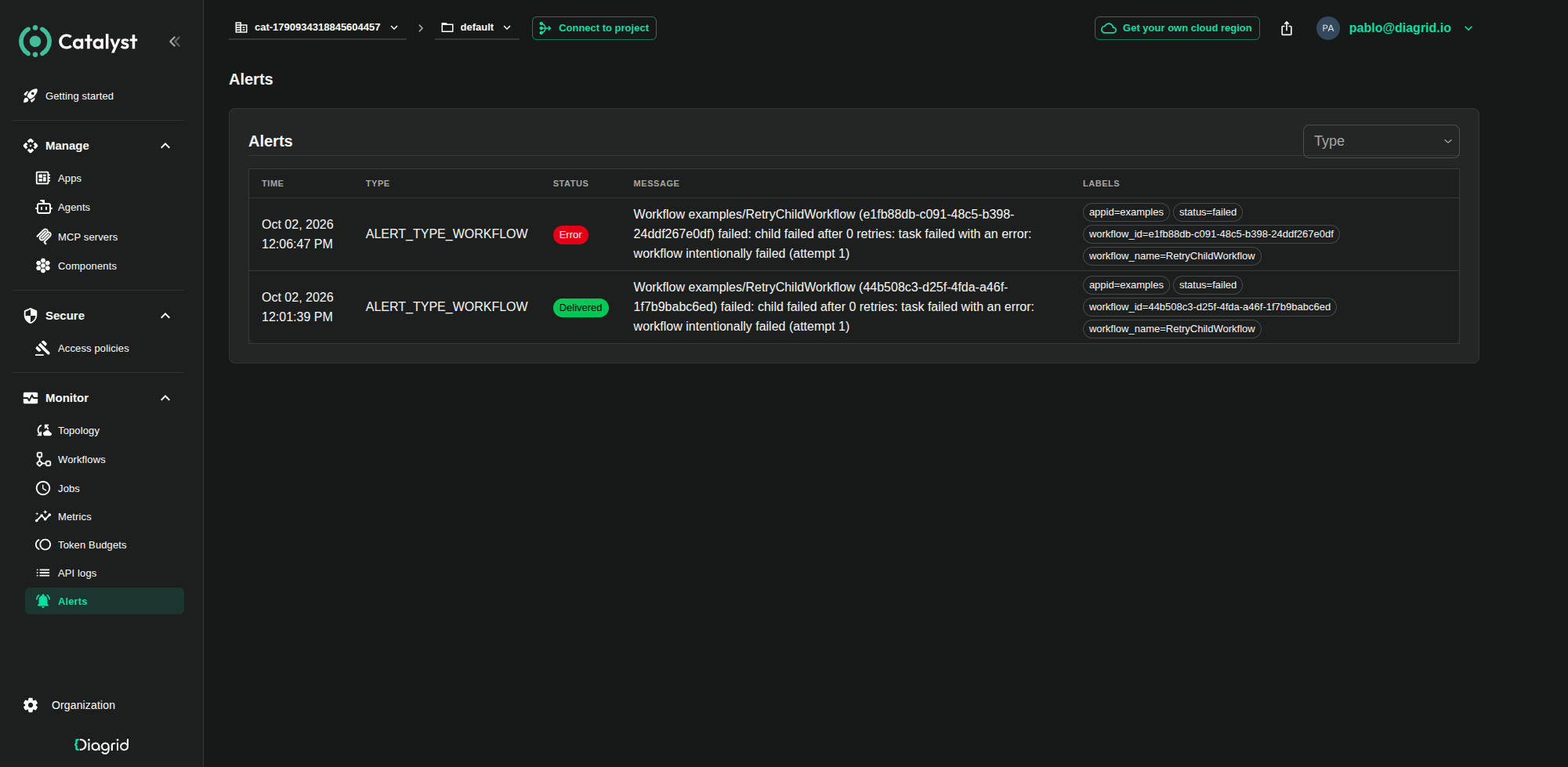
An alert can have one of the following statuses:
not routed: The alert didn't match any notification route.delivering: Delivery to one or more destinations is pending.delivered: The alert was successfully delivered to all destinations.error: An error occurred while delivering the alert.
Clinking on a notification shows details of the status.
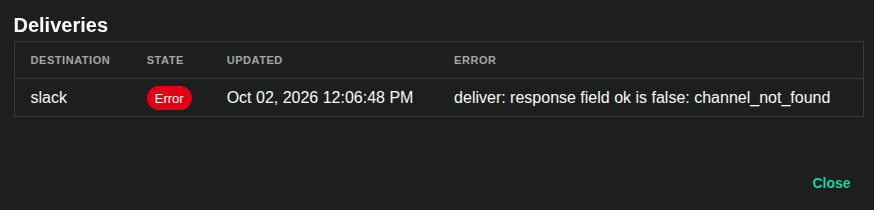
Alerts are read-only. There is nothing to acknowledge, resolve, or dismiss.
Delivering alerts to a webhook
Delivery takes two resources, both scoped to a project:
- A notification destination is the sink an alert is delivered to. It is reusable — several routes can name the same destination.
- A notification route selects alerts by their type and their labels, and delivers every match to the destinations it names.
Create a destination
diagrid notification destination create ops-webhook \
  --project my-project \
  --webhook-url https://hooks.example.com/catalyst
To authenticate the delivery, pass a bearer token. The token is moved into the project's secret store on the way in — it is not kept on the destination, and reading the destination back never returns it:
diagrid notification destination create ops-webhook \
  --project my-project \
  --webhook-url https://hooks.example.com/catalyst \
  --webhook-auth-token s3cr3t
Add --webhook-header Name:value for a header the receiver expects, repeating the flag for several. The destination sets Content-Type and Authorization itself, so a destination that configures either header is rejected. Pass the bearer credential with --webhook-auth-token instead.
webhook is the only destination type, and it is the default.
Create a route
A route must specify a name and a destination:
diagrid notification route create all-alerts \
  --project my-project \
  --destination ops-webhook
A route with no filter delivers every alert in the project. Narrow it by specifying an alert type and the labels the alert must match to be delivered to the destination(s). Repeat --filter to define multiple label matches — an alert must satisfy all of them:
diagrid notification route create chat-budget \
  --project my-project \
  --type ALERT_TYPE_TOKEN_BUDGET_DEPLETED \
  --filter budget=chat-tokens \
  --filter 'appid=~^order-' \
  --destination ops-webhook
Each filter is written as key<op>value:
| Operator | Matches when |
|---|---|
= | The label equals the value. |
!= | The label differs from the value. |
=~ | The label matches the value as a regular expression. |
!~ | The label does not match the value as a regular expression. |
A label the alert does not carry is matched as an empty value, so a != or !~ filter also matches alerts that have no such label. A regular expression matches anywhere in the value unless you anchor it with ^ or $: appid=~order- also matches reorder-api.
--type restricts the route to one alert type. Leave it unset to match every type. Repeat --destination to deliver the same matches to several destinations.
Shape the request body
By default the body is the notification serialized as JSON, with the alert type, its labels, its message, and the time Catalyst accepted it:
{
  "type": "ALERT_TYPE_WORKFLOW",
  "labels": {
    "appid": "orders",
    "workflow_id": "order-7f3c",
    "workflow_name": "order-processing",
    "status": "failed"
  },
  "message": "<the alert's message>",
  "timestamp": "2026-09-24T10:15:30Z"
}
The endpoint must answer with a 2xx status, and also pass the destination's response check when it has one. Any other status, or a failed connection, makes Catalyst retry the delivery, so the same alert can arrive more than once. --webhook-body-template renders the body instead, as a Go text template with the notification as the template data: .Type, .Labels, .Message, and .Timestamp.
diagrid notification destination create slack \
  --project my-project \
  --webhook-url https://hooks.slack.com/services/... \
  --webhook-body-template '{"text": {{ .Message | json }}}'
Pipe every interpolated value through the json function, as above, so the body stays valid whatever the value contains.
Check the response body
Some endpoints answer 200 even when they reject the request, and report the failure in the JSON response body instead.
A response check makes Catalyst read that body. A 2xx response then counts as delivered only when one field of the body shows success.
A delivery that fails the check is retried like one that returns an error status.
--webhook-check-field takes the field and the value that mean success, as field=value.
Slack's API, for example, sets ok to true only when it accepts the message, and returns the reason
of rejecting it in the error field.
diagrid notification destination create slack \
  --project my-project \
  --webhook-url https://slack.com/api/chat.postMessage \
  --webhook-auth-token xoxb-... \
  --webhook-body-template '{"channel": "C0123456789", "text": {{ .Message | json }}}' \
  --webhook-check-field ok=true \
  --webhook-check-message error
Many endpoints add an error object to the body only when the request fails. For those, leave the value empty, as field=.
The delivery then succeeds only when the field is missing, null, or an empty string:
diagrid notification destination create alerts-api \
  --project my-project \
  --webhook-url https://api.example.com/alerts \
  --webhook-check-field error= \
  --webhook-check-message error.message
The check works as follows:
- A field is a dot-separated path into the body, such as
okorresult.status. - The value is compared as text, so
ok=truematches both the booleantrueand the string"true". - Any body that does not show success fails the delivery. That includes a body that is not JSON.
--webhook-check-messagenames the field that describes the failure. Catalyst adds its value to the reason the delivery failed.
A check that names the wrong field fails every delivery. Because each failure is retried, the endpoint can receive the same alert many times. Check the field against a real response from the endpoint before you add the check.
Manage routes and destinations
List and inspect what a project has with list and get:
diagrid notification route list --project my-project
diagrid notification destination get ops-webhook --project my-project
update changes a route in place. Passing --filter or --destination replaces that whole list, and passing --type replaces the type. A flag you leave out keeps its current value. An empty value counts as a flag you left out, so update cannot remove a type or a filter. Delete the route and create it again to widen it:
# Replace the filter, keeping the type and the destinations
diagrid notification route update chat-budget \
  --project my-project \
  --filter budget=chat-tokens
diagrid notification destination update changes the response check without recreating the destination:
--webhook-check-fieldreplaces the field and the value. It keeps the current--webhook-check-messageunless you pass that flag too.--webhook-check-messageon its own changes only the message field. An empty value,--webhook-check-message "", clears it.- An empty
--webhook-check-field ""removes the check, so any2xxresponse counts as delivered again.
# Remove the response check
diagrid notification destination update slack \
  --project my-project \
  --webhook-check-field ""
Deleting a destination drops its pending deliveries, but routes that name it stay in place. Their matches keep being queued, and a destination you later create with the same name receives them. Matches that no destination picks up expire unsent. Delete or update those routes when you remove a destination for good.
See also
diagrid notificationreference — every flag on the route and destination commands.- Observability — metrics, API logs, and topology for the project the alert came from.
