Azure Marketplace Installation Guide
This guide walks you through deploying a Self-hosted Catalyst region to your own Azure subscription after subscribing to Diagrid Catalyst on the Azure Marketplace. The end-to-end journey is described in four phases: subscribing, registering, deploying a Solution Template, and verifying.
Prerequisites
Azure Account
- An active Azure subscription with a valid payment method
- Owner or Contributor + User Access Administrator role on the subscription
- Sufficient Dsv7-family vCPU quota in your target Azure region (see the table below)
The solution template deployment uses D-series v7 VMs for both the AKS node pool and the jumpbox. The AKS node pool is provisioned with Cluster Autoscaler enabled, so quota must cover at least the baseline, and ideally the autoscaler peak:
| Size | AKS nodes (desired → max) | Jumpbox | Baseline vCPUs | Autoscaler peak vCPUs |
|---|---|---|---|---|
| Small | D2s_v7 × 1 → 3 | D2s_v7 | 4 | 8 |
| Medium | D4s_v7 × 2 → 5 | D2s_v7 | 10 | 22 |
| Large | D8s_v7 × 3 → 10 | D4s_v7 | 28 | 84 |
SSH Key
You will need an SSH public key for jumpbox access. If you don't have one:
- macOS/Linux
- Windows
ssh-keygen -t ed25519 -f ~/.ssh/catalyst-jumpbox
ssh-keygen -t ed25519 -f $env:USERPROFILE\.ssh\catalyst-jumpbox
Step 1: Subscribe on Azure Marketplace
- Navigate to the Diagrid Catalyst Enterprise listing on Azure Marketplace.
- Click Get it now.
- Select your plan and click Subscribe.
- Once the subscription is confirmed, click Configure account now — you will be automatically redirected to the Diagrid registration page.
Step 2: Create a Diagrid Account
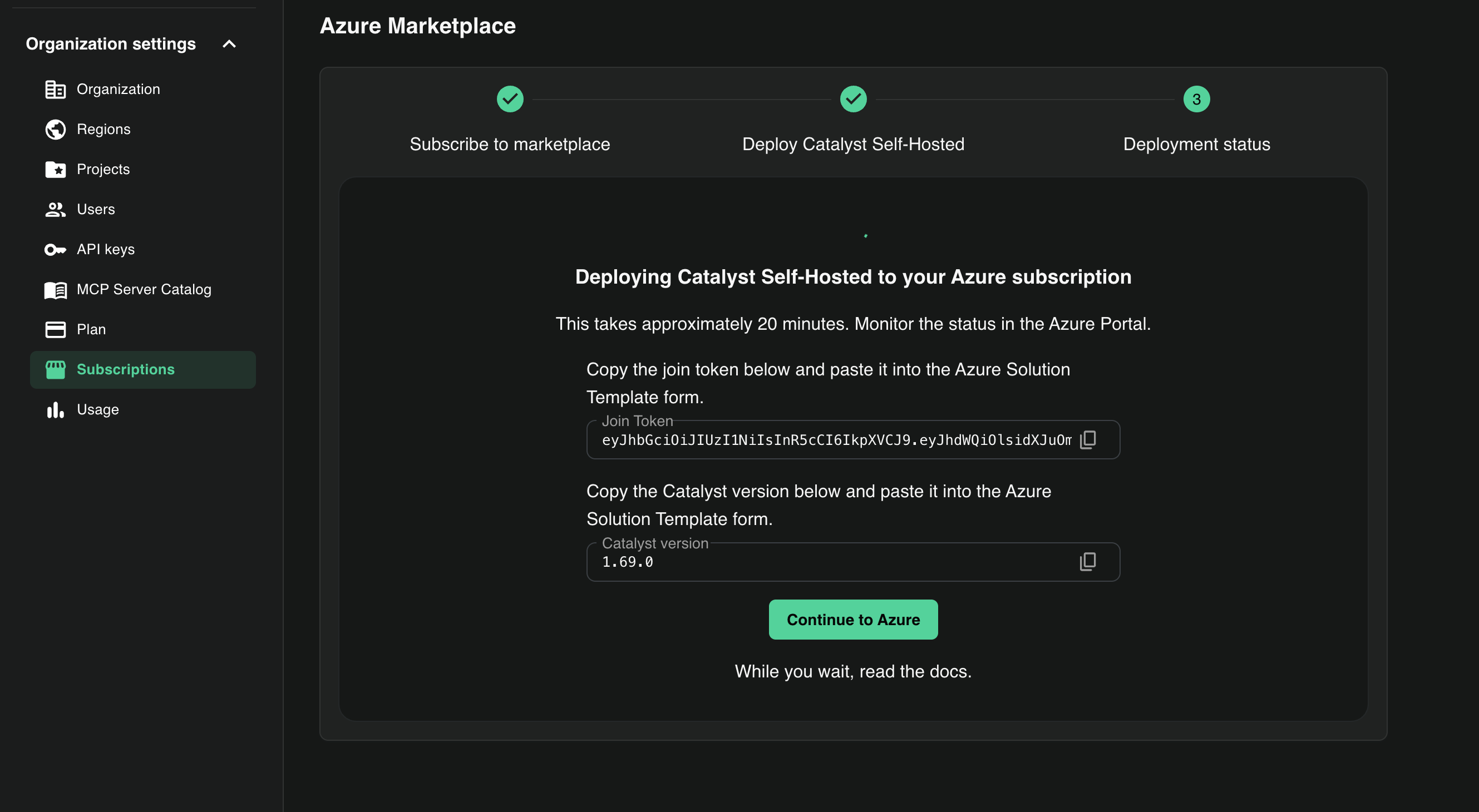
- You will land on the Catalyst login page.
- Sign up for a new Diagrid account, or log in if you already have one.
- Once logged in, Diagrid automatically creates a Catalyst region and displays a join token and a Catalyst version. Copy both values as you will paste them into the Azure Solution Template form.
- Click Continue to Azure to open the Catalyst Solution Template listing on Azure Marketplace in a new browser tab. Click Get it now to launch the Solution Template deployment form in the Azure Portal. Keep the Catalyst portal browser tab open; you will return here after deployment to verify your region.
Step 3: Deploy the Solution Template in Azure
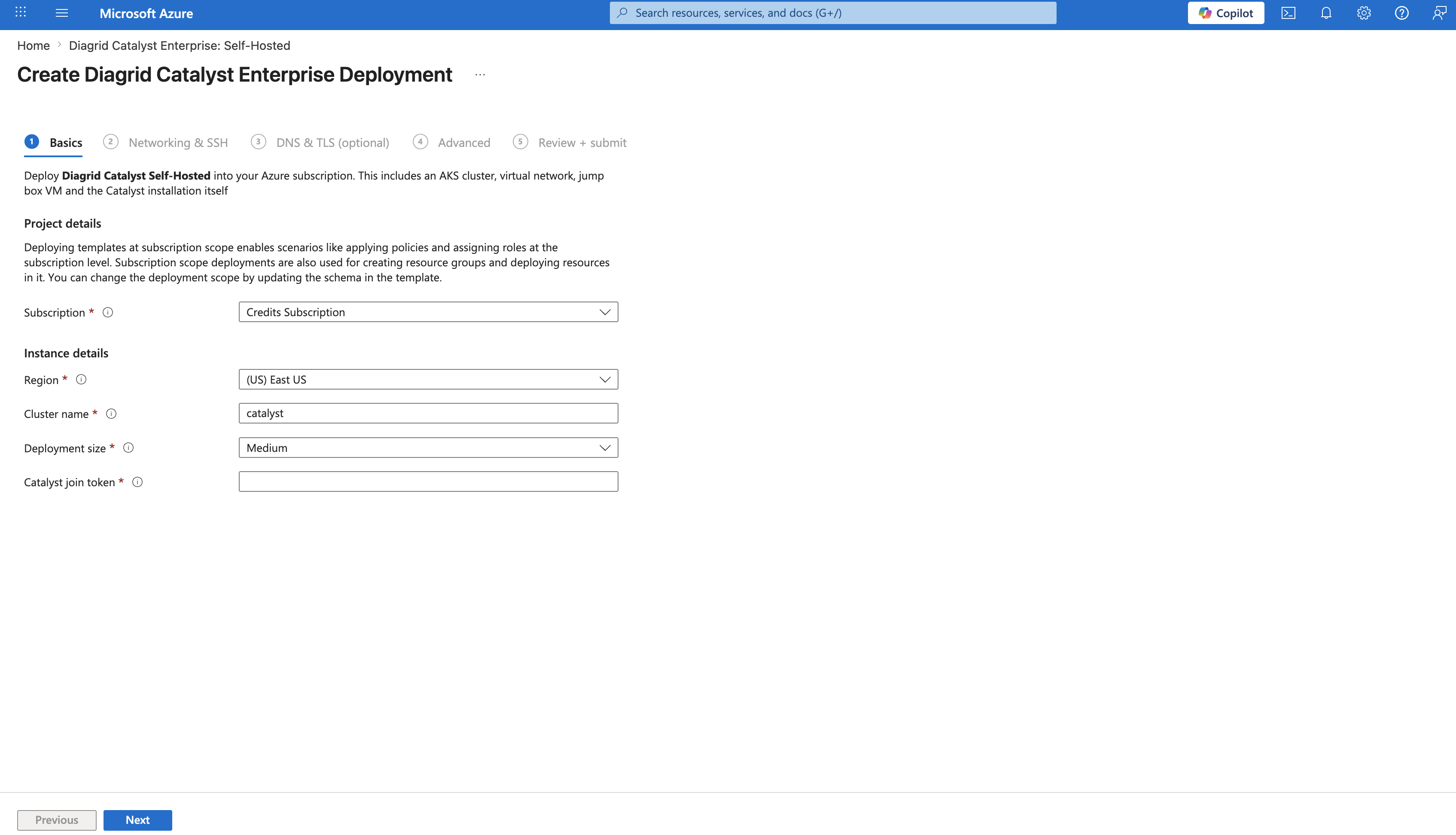
The Azure Portal opens on the Catalyst Solution Template page. Fill in the required fields below on each of the tabs, including the join token and Catalyst version you copied in Step 2:
Basics
| Field | Value |
|---|---|
| Subscription | Select your Azure subscription |
| Resource group | Select an existing resource group or click Create new |
| Region | Select the Azure region for your deployment (e.g. East US) |
| Cluster name | A name prefix for all resources (default: catalyst) |
| Deployment size | Choose Small, Medium, or Large based on your workload. See table above for details |
| Catalyst join token | Copy from the Diagrid marketplace registration page |
Networking & SSH
| Field | Value |
|---|---|
| SSH public key | Your SSH public key created above in Prerequisites |
| Operator SSH CIDR | Your IP range for SSH access to the jumpbox (e.g. 203.0.113.5/32). Use 0.0.0.0/0 only for short-lived testing. |
| VNet address space | VNet CIDR — default 10.42.0.0/16 is fine for most deployments |
| Workload subnet CIDR | Subnet for AKS and jumpbox — default 10.42.1.0/24 is fine for most deployments |
DNS & TLS (optional)
Skip this section if you want Diagrid to manage your region's ingress domain automatically. If you require a custom domain, check Enable public DNS + TLS and provide your wildcard domain name and a contact email for Let's Encrypt certificate registration.
Advanced
| Field | Value |
|---|---|
| Catalyst Helm chart version | Copy from the Diagrid marketplace registration page |
Leave the remaining control plane endpoint values at their defaults unless instructed otherwise by Diagrid support.
Launch
- Click Review + Create.
- Review the deployment summary and click Create to begin the Azure resource deployment.
You can monitor progress in the Azure Portal under your resource group's Deployments blade.
Infrastructure Resources Deployed
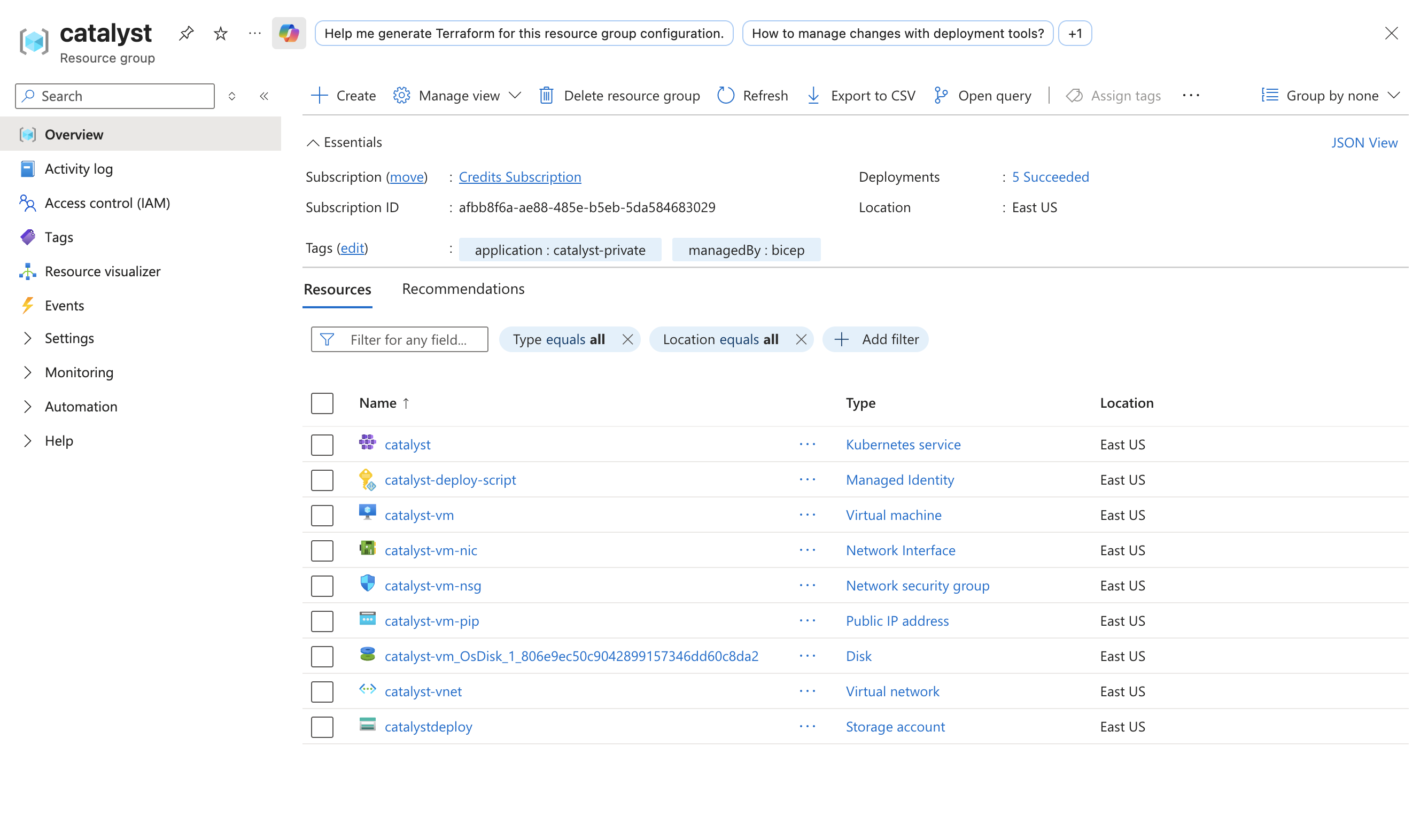
The deployment creates a resource group and provisions the following infrastructure in sequence:
Networking: A VNet with a workload subnet for AKS nodes and an ACI-delegated subnet for the post-deploy automation.
Kubernetes cluster: A private AKS cluster is created in the workload subnet with Azure CNI networking. The cluster API endpoint is private (not publicly accessible). Workload Identity and OIDC issuer are enabled. A managed node pool is provisioned at the size you selected.
DNS (optional): If you enabled DNS integration, an Azure DNS zone is created along with user-assigned managed identities and federated credentials for cert-manager and external-dns. You will need to delegate NS records from your domain registrar to the Azure DNS name servers shown in the deployment outputs.
Jumpbox: An Ubuntu VM with a public IP is deployed in the same VNet, providing SSH access to the private AKS cluster for troubleshooting.
Catalyst region installation: A post-deploy script runs as an Azure Container Instance inside the VNet. It installs Helm and kubectl, optionally configures cert-manager and external-dns, then installs Catalyst via Helm using the join token. Once Catalyst connects to the Diagrid control plane, the deployment completes.
Step 4: Verify Your Deployment
Check the Azure Portal
Navigate to Resource Groups in the Azure Portal and find the resource group matching your cluster name. Confirm the deployment status shows Succeeded.
Check the Region status
Return to the Catalyst portal tab or go to the Catalyst portal and log in:
- Navigate to Regions in the left sidebar.
- Find your region by the name you noted in Step 2 and check the following two status indicators:
| Field | Values | What it means |
|---|---|---|
| Connection State | joining → online | joining means Catalyst has not connected yet. online means the agent is connected and communicating. |
| Status | ready | The region is fully operational. |
Once the region shows online and ready, your deployment is complete.
Check the Ingress Address
In the region detail view, the Ingress Addresses section shows the IP address or domain for your Catalyst region's gateway.
Troubleshooting
If the deployment fails or the region does not reach online / ready status, delete the resource group in the Azure Portal and redeploy. If the issue persists, contact Diagrid support.
Access the Cluster Directly
If you need to troubleshoot the cluster, SSH into the jumpbox:
- macOS/Linux
- Windows
ssh -i ~/.ssh/catalyst-jumpbox azureuser@<jumpbox-public-ip>
ssh -i $env:USERPROFILE\.ssh\catalyst-jumpbox azureuser@<jumpbox-public-ip>
The jumpbox has network access to the private AKS cluster. From there you can run kubectl commands.
Next Steps
With your Catalyst region running, try the Operator Quickstart to create a project that your team can build in.